Common PC Building Mistakes Beginners Make (And How to Avoid Them)
This guide contains affiliate links. If you buy through them, we may earn a commission at no extra cost to you.
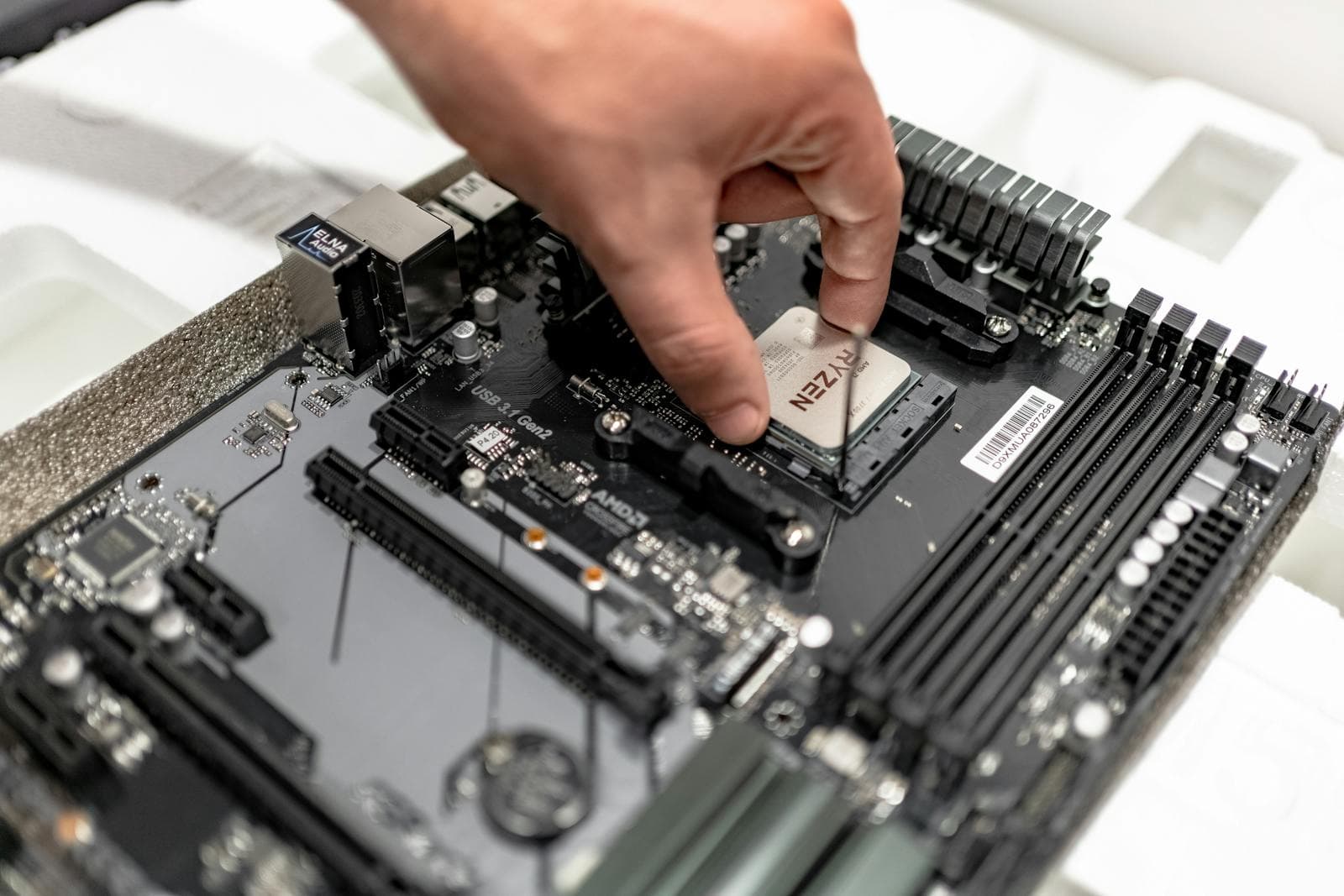
The most common PC building mistakes are buying incompatible parts, undersizing the power supply (PSU), and forgetting the CPU power cable. Every mistake on this list is avoidable before you build, and most take under a minute to fix once you know what to look for.
Some links on this page are affiliate links. If you buy through them, MaxMyBuild earns a small commission at no extra cost to you.
The 10 Most Common PC Building Mistakes at a Glance
| # | Mistake | What goes wrong |
|---|---|---|
| 1 | Buying incompatible parts | CPU won't fit, RAM type wrong, nothing boots |
| 2 | PSU too small for the build | Crashes under load, potential hardware damage |
| 3 | Forgetting the CPU power cable | PC boots for 2 seconds then shuts off |
| 4 | RAM in the wrong slots | Single-channel mode, up to 50% lower memory bandwidth |
| 5 | GPU too long for the case | Card won't fit or blocks drive bays |
| 6 | Skipping the BIOS update | New CPU not recognized by the board |
| 7 | Missing standoffs or the I/O shield | Motherboard shorts to case |
| 8 | Monitor plugged into motherboard | Runs on integrated graphics, GPU sits idle |
| 9 | Thermal paste film left on cooler | CPU overheats within seconds of first boot |
| 10 | Screws overtightened or undertightened | Stripped threads or loose, flexing components |
1. Buying Incompatible Parts Before Checking Compatibility
The most expensive mistake on this list costs nothing to avoid before you buy and can cost hundreds of dollars to fix afterward.
PC components have strict compatibility requirements that are not obvious at first glance. CPUs only physically fit specific motherboard sockets: an AMD Ryzen 9000-series processor uses the AM5 socket; an Intel Core Ultra 200-series uses LGA1851. Those two are physically different and incompatible with each other and with every previous socket generation. The MaxMyBuild database catalogs more than 8 distinct CPU socket types. Buying a processor and motherboard that use different sockets means you cannot use either until you return one.
RAM type is the other common mismatch. Every current AM5 and LGA1851 motherboard uses DDR5 only. DDR4 kits are not interchangeable with DDR5 slots: the module keying notch is in a different position, and it physically cannot be inserted into a DDR5 slot. There is no DDR4 in any 2026 gaming build.
How to avoid it: Match CPU socket to motherboard socket before you buy. Confirm the motherboard's RAM type (DDR5 for all current platforms) matches your RAM kit. The PC build compatibility guide covers every compatibility check in detail. Or use the PC Builder at MaxMyBuild to get a verified compatible parts list automatically.
2. Buying a PSU That's Too Small for Your Build
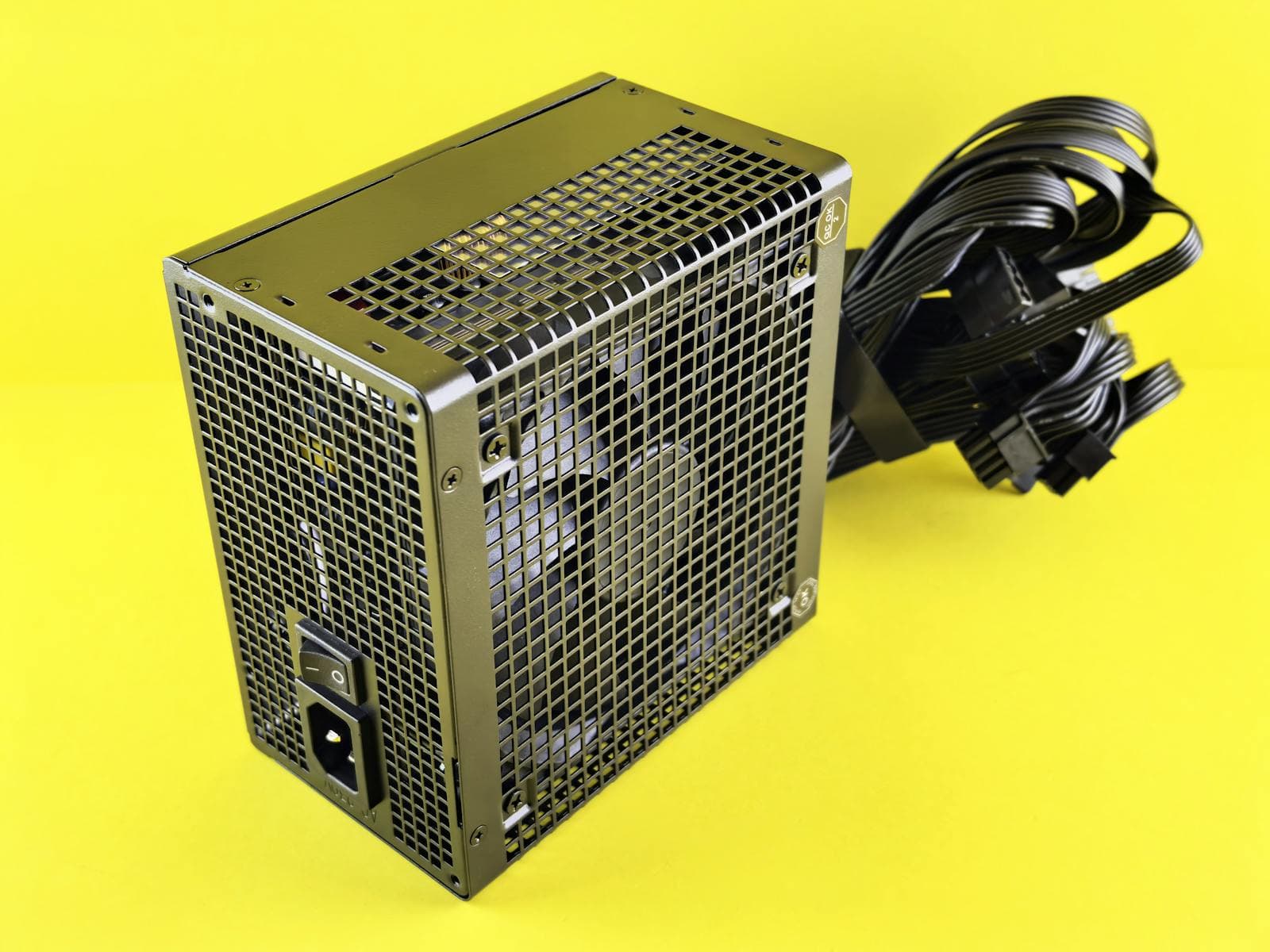
A power supply unit converts AC power from the wall into the DC voltages your components run on. Get the wattage wrong and your PC crashes under load, throttles at the worst moments, or fails to boot at all.
The typical beginner mistake is choosing the cheapest 550W PSU available, then pairing it with a mid-range GPU. Most mid-range graphics cards draw 200-300W under gaming load; high-end cards pull 300-400W or more. Add a CPU at 65-125W, case fans, storage, and RAM, and a 550W unit is already at or past 85-90% of its rated capacity. PSUs run most efficiently and stably at 50-80% load. Past that point they run hotter, wear faster, and can trigger shutdowns during GPU-heavy scenes.
Real numbers from the MaxMyBuild catalog back this up: 67% of GPU variants in the database are 281mm or longer and pull well over 200W. The 650-799W PSU wattage tier has more available models (170 units) than any other, because that's where most actual gaming builds land.
The right approach: Add your CPU's boost power (PPT for AMD Ryzen, PL2 for Intel Core) to your GPU's TGP, add roughly 100W for the rest of the system, then add 15% headroom and round up to the next tier. For most mid-range builds, 750W from a Gold-rated unit covers everything comfortably. High-end GPUs above 300W need 850W or more. The TDP guide for CPU and GPU power matching walks through the full calculation. For specific PSU picks at each budget, see best PSU for gaming in 2026.
3. Forgetting the CPU Power Cable
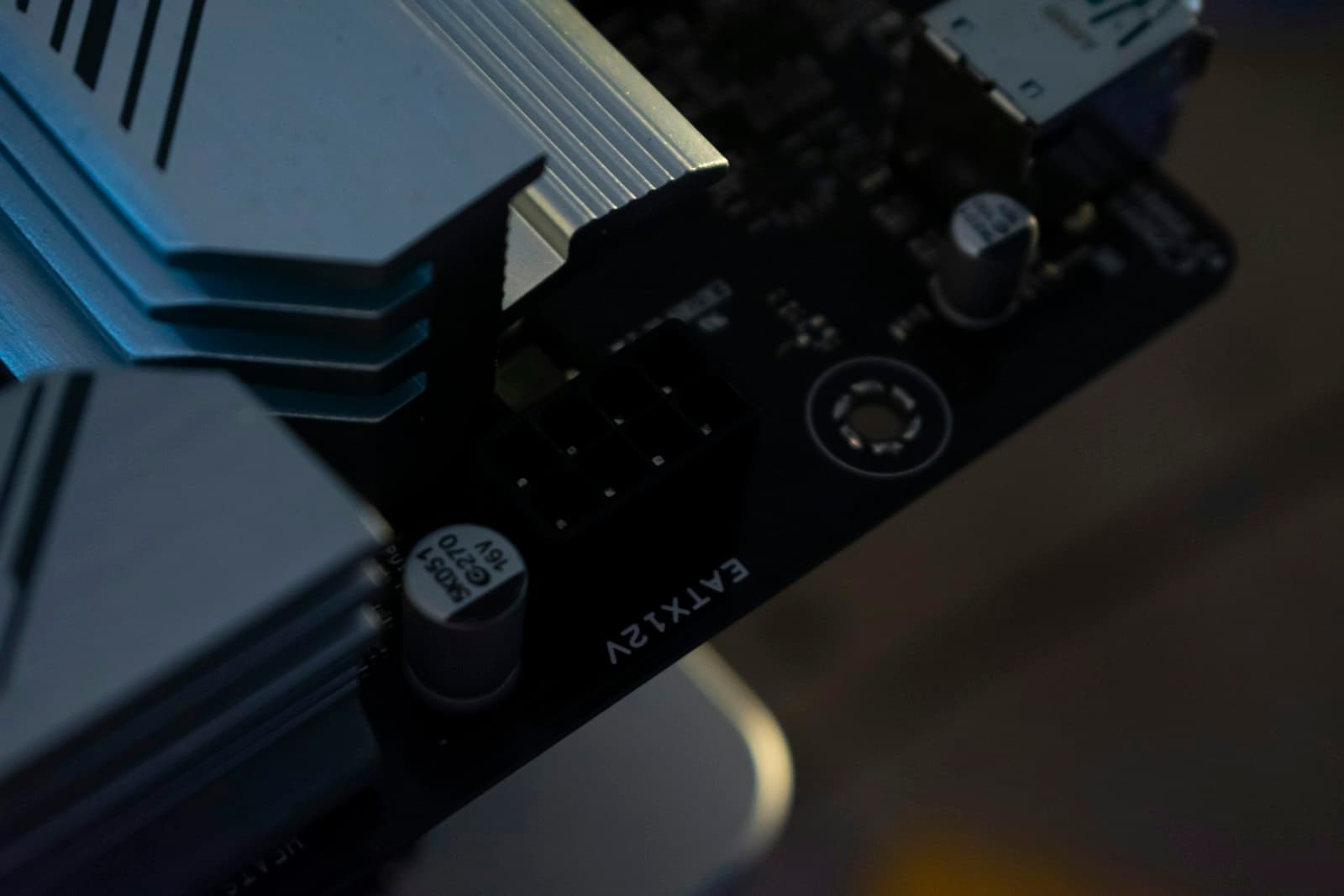
This single mistake is responsible for more failed first boots than anything else.
Every motherboard has two main power connectors: the large 24-pin ATX connector along the right edge, which powers the board itself, and a separate 4+4 or 8-pin EPS connector near the top-left corner, which powers the CPU directly. Without the EPS connector, the system will attempt to POST, fail to sustain CPU power, and shut down within 2-3 seconds as a protection measure. The PC appears to work at first, which makes this tricky to diagnose.
First-time builders typically route the 24-pin connector, connect all the SATA and PCIe power cables, close the case, and then discover the CPU cable is still dangling from the PSU. The EPS connector is easy to miss: it's in a dark corner near the top of the case, sometimes tucked under the CPU cooler.
Before closing the case: Verify both the 24-pin ATX cable and the 4+4 or 8-pin EPS cable are fully seated with an audible click. If your build powers on for 2-3 seconds then shuts off, that EPS connector is the first thing to check. The PC won't turn on after building guide walks through every failure mode in order from most to least likely.
4. Installing RAM in the Wrong Slots
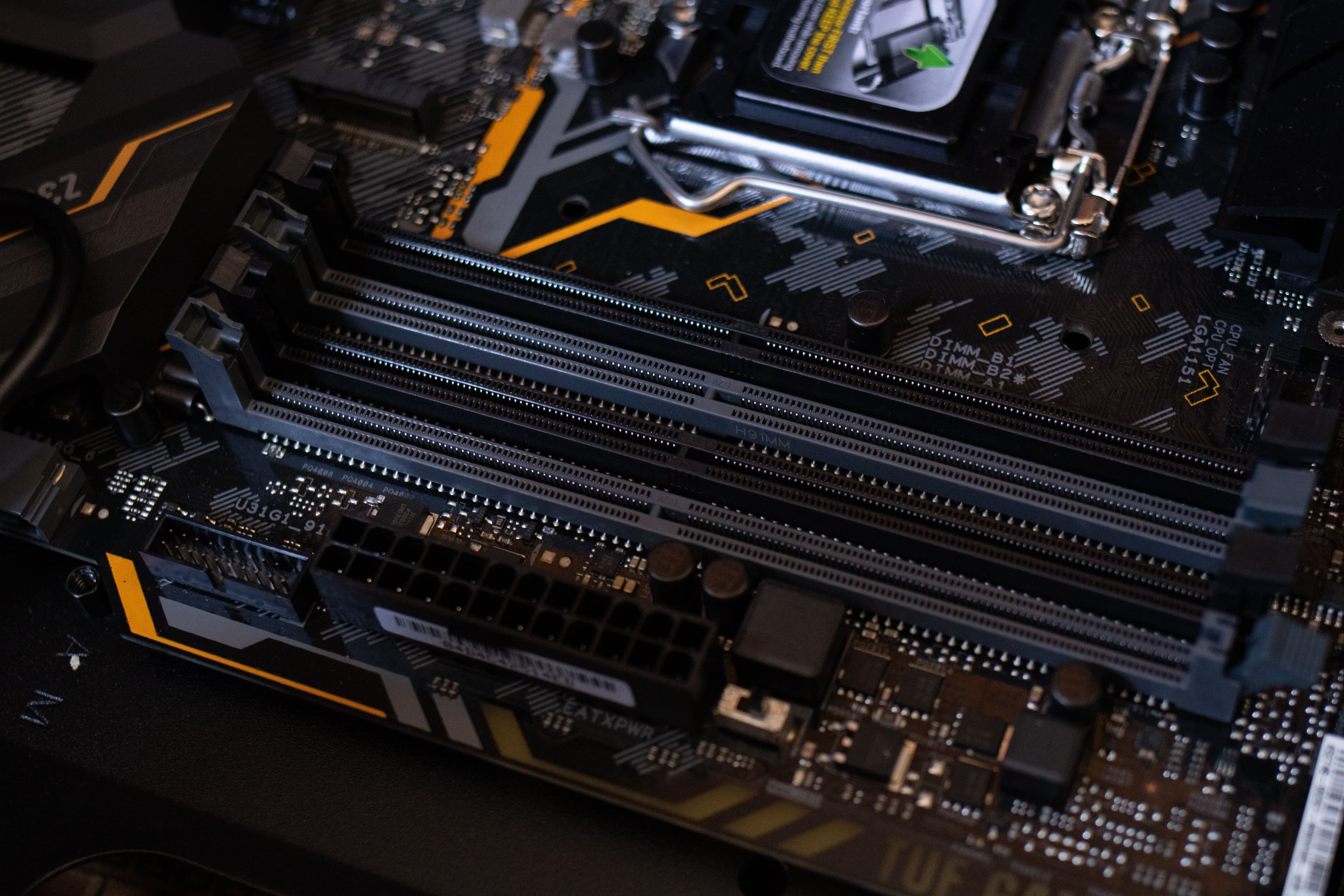
Two RAM sticks can run in single-channel or dual-channel mode depending on which slots they occupy. The performance difference matters: dual-channel provides roughly twice the memory bandwidth, which directly affects frame rates in games that are memory-bandwidth-sensitive.
Most motherboards have four RAM slots labeled A1, A2, B1, B2. The dual-channel configuration pairs A2 with B2, which are the second and fourth slots from the CPU socket. Installing both sticks in A1 and A2 (the two slots closest to the CPU, side-by-side) puts them on the same memory channel. They share 64-bit bandwidth instead of operating as two independent 64-bit channels in parallel.
This mistake is common because side-by-side feels symmetrical and logical. It also produces a working system with no error messages, so builders often don't realize they're in single-channel mode until they notice lower-than-expected performance.
The fix: Check your motherboard manual before inserting RAM. The dual-channel slots are usually color-coded or labeled. Install two sticks in the correct pair, leave the other two empty. If your board has only two slots, any configuration is dual-channel.
5. Picking a GPU That's Too Long for Your Case
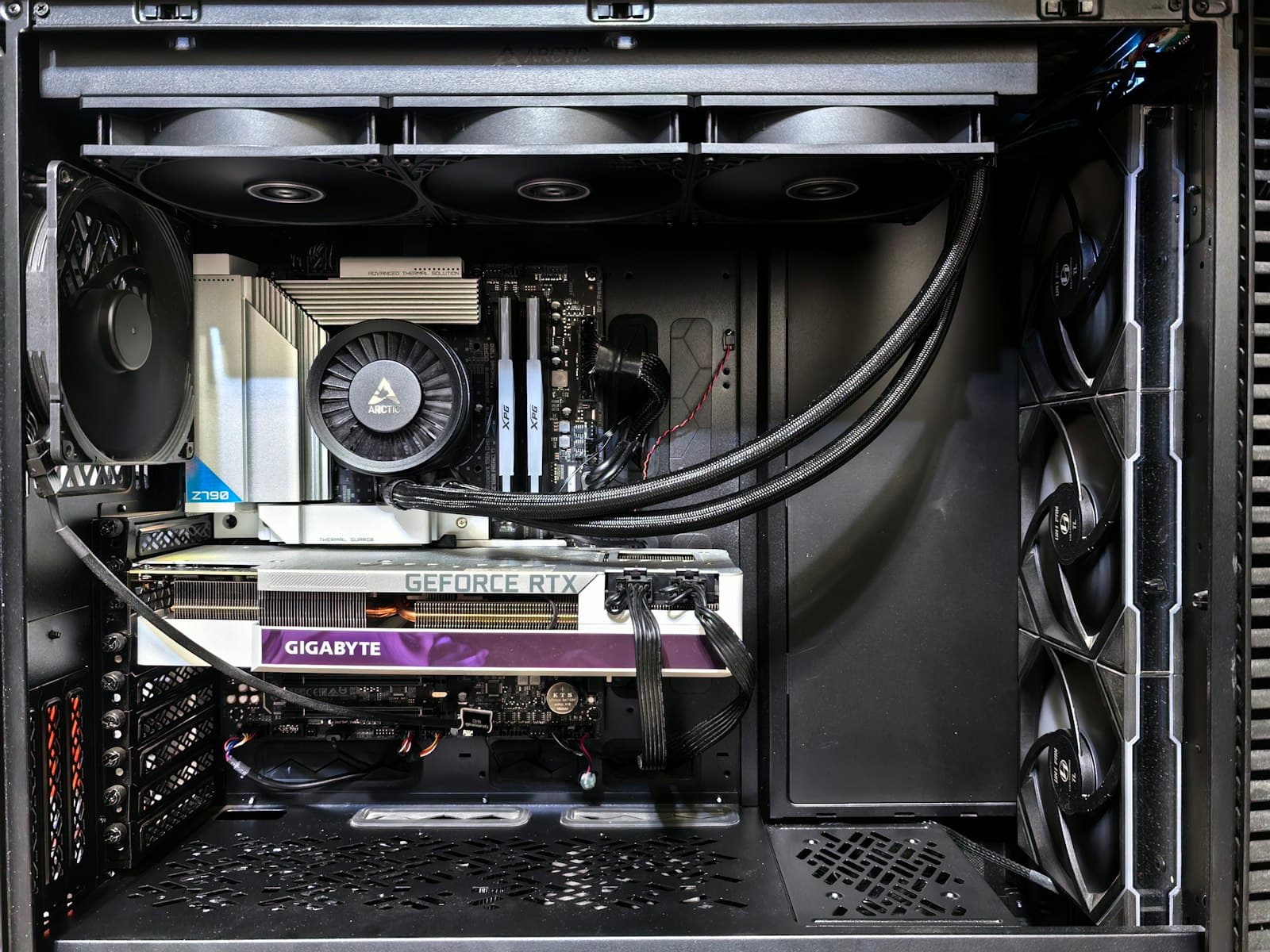
GPU clearance is a hard physical constraint. Unlike most other compatibility issues, you can't work around it after the parts arrive.
The numbers make the risk clear: 67% of GPU variants in the MaxMyBuild database are 281mm or longer, and a significant portion of current mid-range and high-end cards run 300-320mm or beyond. Not every PC case can fit a card that long. Many compact mid-towers list maximum GPU clearance at 280-300mm. A 330mm card in a case rated for 300mm won't seat, or it will collide with a front fan bracket, drive cage, or the front panel itself.
High-end cards are the most extreme cases. Some flagships reach 340-367mm. These require a full-tower or a mid-tower specifically designed for long cards.
How to check before buying: Find your case's maximum GPU length in the specifications, usually listed under "Expansion" or "Graphics Card." Find your GPU's length in its own specifications under "Dimensions" or "Card Length." The GPU size and case clearance guide walks through exactly where to find these numbers and what to do if the fit is borderline.
6. Skipping the BIOS Update Before Installing a New CPU
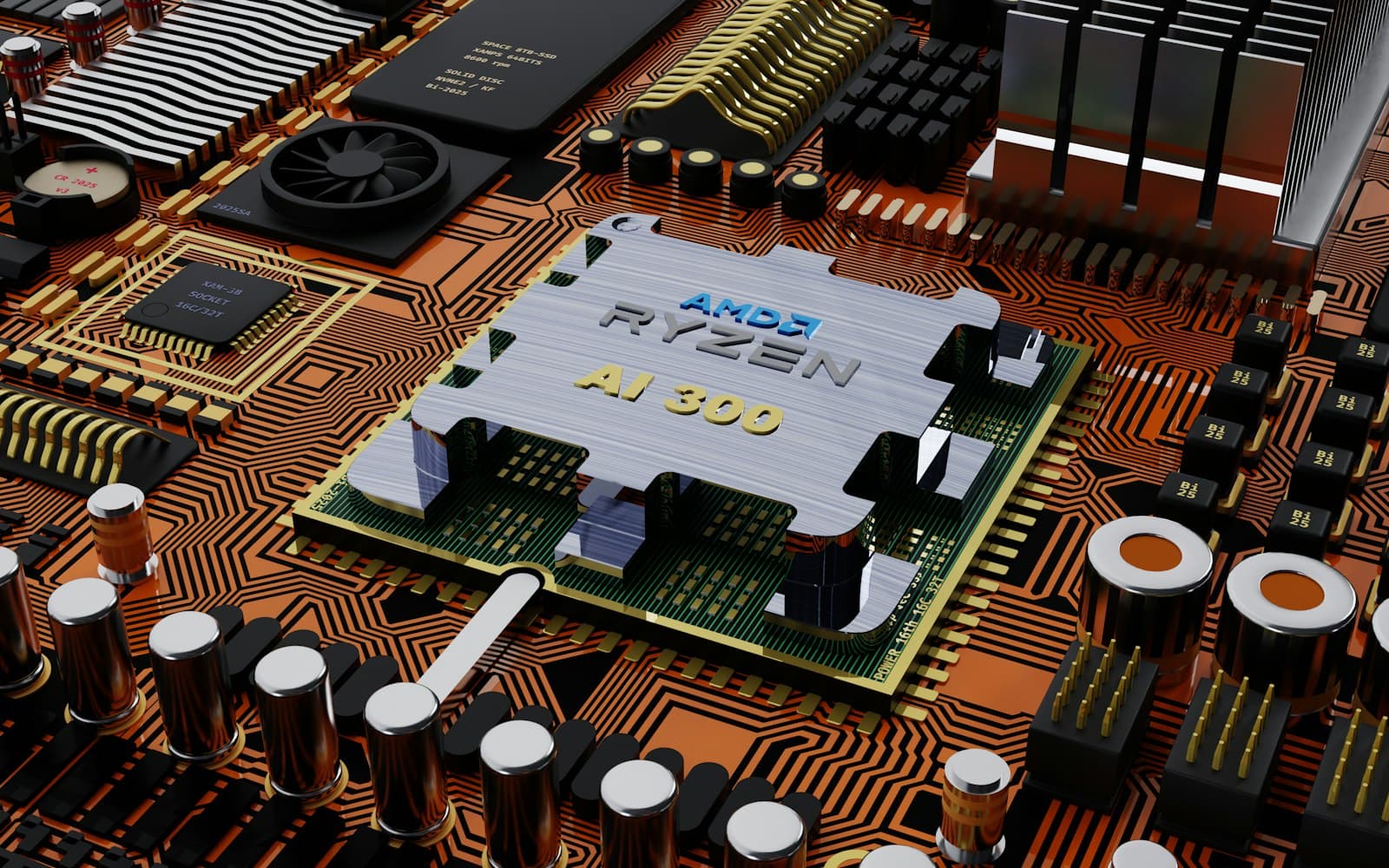
Motherboard firmware (called the BIOS or UEFI) needs to include support for a CPU before it can boot from it. Firmware versions are released on a schedule; if a CPU launched after your board's current firmware was written, the board will report no CPU detected even when the chip is correctly seated.
This situation is most common with CPU releases that come after the motherboard's chipset. An AM5 B650 board bought in mid-2024, for example, may need a BIOS update to support Ryzen 9000-series processors that launched afterward. The socket and chipset are compatible, but the firmware doesn't know the new SKU exists yet.
Prevention: Before buying, find your specific motherboard model on the manufacturer's website and check the CPU support list. Note which BIOS version adds support for your processor. If a BIOS update is required and you don't have a compatible older CPU to use during the update, look for a board with BIOS Flashback (a feature that lets you update firmware from a USB drive without any CPU installed). Some retailers will also pre-flash the BIOS on request.
7. Forgetting Standoffs or the I/O Shield
Two installation steps that beginners skip because they seem minor but both cause serious problems.
Standoffs are the small brass hex spacers that thread into the case and create a gap between the motherboard PCB and the steel case backplate. Their purpose is purely electrical: without them, the solder joints and traces on the underside of the motherboard touch the grounded metal case and short circuit. Most cases come with standoffs pre-installed in ATX positions. If yours aren't pre-installed, match the standoff holes to your motherboard's mounting pattern before setting the board down.
The I/O shield is the thin metal plate that snaps into the rectangular cutout in the rear of the case where your motherboard's ports sit (USB, audio, Ethernet, video). It snaps in from the inside of the case, and it must go in before the motherboard. Builders who forget it must remove the board completely to install it. The shield also provides some EMI shielding and properly grounds the rear port cluster.
The checklist: Before the motherboard goes in, verify standoffs are seated in the correct holes for your form factor (ATX, mATX, or Mini-ITX), and snap the I/O shield flush from inside the case. Both steps take 30 seconds and save significant teardown time.
8. Plugging Your Monitor Into the Motherboard Instead of the GPU
If your motherboard has HDMI or DisplayPort outputs on the rear I/O panel, those connect to the CPU's integrated graphics. In a build with a dedicated GPU, those ports should never be used.
Plugging the monitor into the motherboard's video output means the display runs through integrated graphics only. Your GPU sits completely idle. The symptom looks almost like a working build: you'll see a Windows desktop and be able to use the computer. But performance will be drastically lower than expected, games will run on minimal integrated graphics instead of the dedicated card, and device manager may not show the GPU as active.
The fix: The GPU's display outputs are on the rear bracket of the card, lower in the case than the motherboard I/O. Look for the HDMI and DisplayPort ports on the card itself. Use one of those. The motherboard video outputs stay empty for the lifetime of a build with a dedicated GPU. If moving the cable doesn't bring up a display at all, the PC won't turn on after building guide covers the rest of the no-display checklist.
9. Leaving the Protective Film on the CPU Cooler Base
Some CPU coolers ship with a thin clear plastic film over the heatsink's contact surface or over a pre-applied thermal paste patch. It's nearly invisible and extremely easy to miss.
If the film is not removed before installation, it acts as insulation between the cooler and the CPU heat spreader. Thermal paste cannot make proper contact through it. CPU temperatures spike to 90C+ within 30 seconds of booting, triggering immediate thermal shutdowns or throttling. The symptom looks like a faulty cooler or a CPU problem, when the actual issue is one piece of plastic film.
Before seating any cooler: Check the base for any protective film or adhesive backing. Check whether thermal paste is pre-applied (most air coolers include a small dot or stripe) or comes in a separate syringe. If the paste is pre-applied, the protective film is directly on top of it. Peel it before installation. If you've already booted with the film in place, remove the cooler, clean both surfaces with 90%+ isopropyl alcohol, and reinstall with fresh thermal paste. The how to apply thermal paste guide covers how much to use and the right pattern for your CPU's shape.
10. Over-tightening or Under-tightening Screws
Neither extreme produces a stable build. Both cause problems that are frustrating to diagnose.
Over-tightening motherboard screws can crack the PCB around the mounting hole or strip the threads on the brass standoffs. Over-tightening GPU bracket screws can warp the rear bracket. The temptation to crank screws as tight as possible feels like thoroughness, but PC components are not automotive parts and don't need high torque.
Under-tightening leaves components loose enough to flex under vibration. A slightly loose motherboard can cause intermittent contact failures with RAM or PCIe cards. A loose GPU can slowly pull its PCIe slot contact out of alignment over months of heat cycling.
The correct technique: finger-tighten each screw to get it started and seated, then use a screwdriver to snug it until you feel resistance. Stop at resistance. For the CPU cooler mounting plate, tighten in an X pattern (opposite corners in sequence) rather than going around in a circle. This distributes pressure evenly across the CPU heat spreader.
If you want to double-check your tool setup before the build, the PC building tools guide covers why a magnetic Phillips #2 is the right choice and why the magnetic tip specifically matters for this step.
Frequently Asked Questions
What is the most common mistake when building a PC? Forgetting the CPU power cable, the 4+4 or 8-pin EPS connector near the top-left corner of the motherboard. Without it, the PC powers on for 2-3 seconds then shuts off immediately. The second most common is buying a motherboard with the wrong CPU socket, which makes the processor physically incompatible before you even open the box.
Does it matter which RAM slots you use? Yes. Installing both sticks in the wrong slots puts your RAM in single-channel mode instead of dual-channel, which can reduce memory bandwidth by up to 50%. Check your motherboard manual before inserting RAM. Most boards want sticks in slots 2 and 4, not 1 and 2 side-by-side.
Can an underpowered PSU damage your PC? Yes. A PSU that cannot supply enough wattage will crash under load, cause instability, and shorten component lifespans. Most mid-range GPUs draw 200-300W on their own. Add a CPU at 65-125W and you need at least 650-750W from a quality unit before accounting for efficiency losses.
What happens if you plug your monitor into the motherboard instead of the GPU? You'll see a desktop, but it runs entirely on the CPU's integrated graphics. Your dedicated GPU is not used at all. Performance will be severely limited. Always plug the monitor cable into one of the display outputs on the GPU itself, not the video ports on the back of the motherboard.
Do you need to update the BIOS before installing a new CPU? Sometimes. If you're pairing a CPU that launched after your motherboard's current firmware, the board may not recognize it. Check the manufacturer's CPU support list and note which BIOS version adds support for your chip. Update before installing, or look for a board with BIOS Flashback if you don't have a compatible CPU to use during the update.
If you haven't picked your parts yet, the PC Builder at MaxMyBuild checks all of the compatibility requirements on this page automatically and returns a verified parts list matched to your budget. For the full step-by-step assembly process, the how to build a gaming PC guide covers every step from CPU installation through first boot and driver setup.