PC Won't Turn On After Building: What to Check
This guide contains affiliate links. If you buy through them, we may earn a commission at no extra cost to you.
The vast majority of new PC builds that won't turn on come down to four things: the power supply unit (PSU) switch on the back, a misconnected front panel wire, a power cable that isn't fully seated, or a loose RAM stick. Work through the checklist below from top to bottom. Most builds are running again in under 10 minutes.
Before starting, identify which failure mode you have. The two scenarios look similar but have different fixes.
Some links on this page are affiliate links. If you buy through them, MaxMyBuild earns a small commission at no extra cost to you.
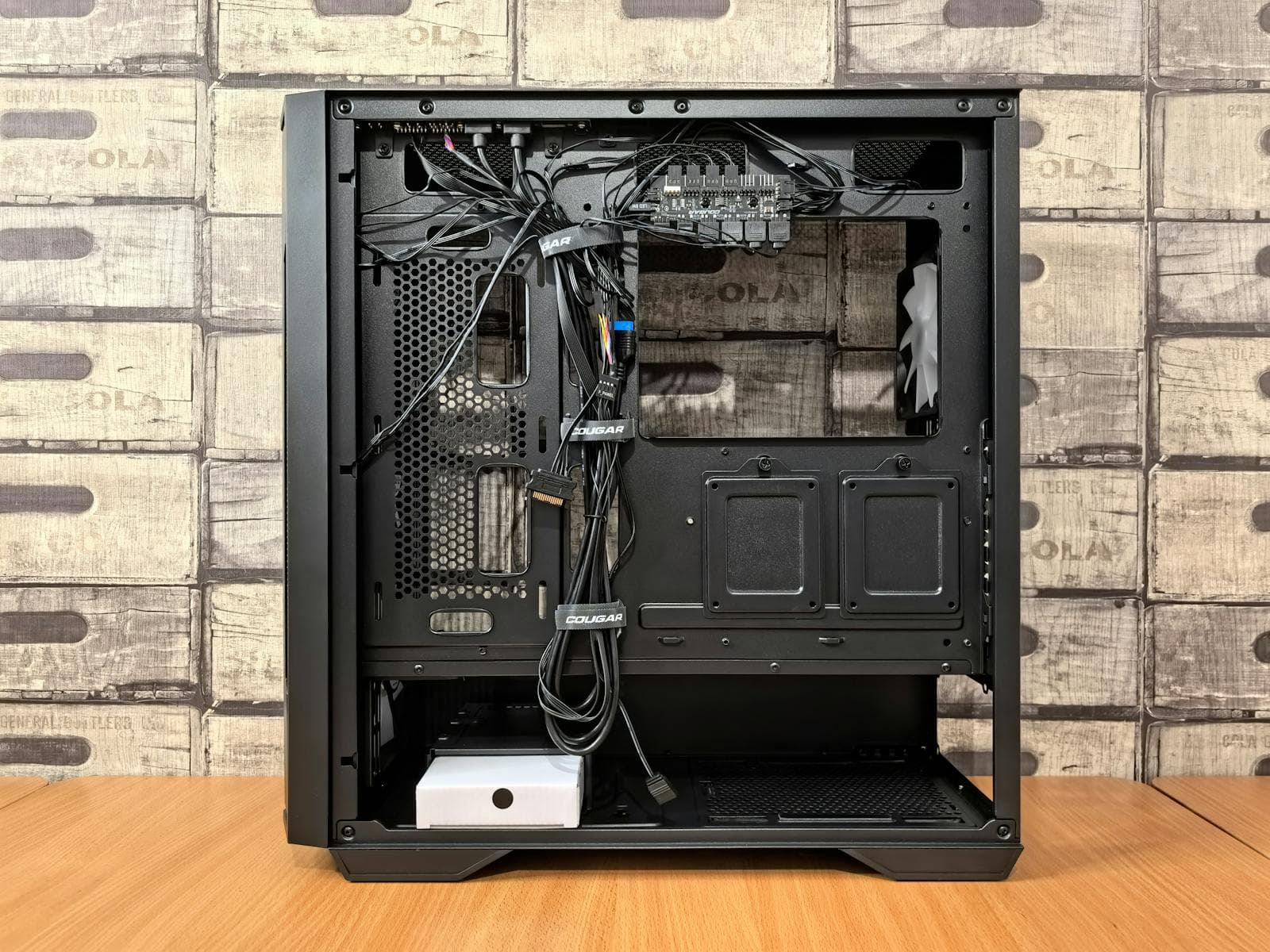
Two Different Problems: "No Power" vs. "No Display"
These are not the same issue, and treating them as one wastes time.
No power means pressing the power button does absolutely nothing. No fan movement, no lights, no sound, no response. The system is completely dead. Start at the Thirty-Second Checks section below.
No display means the PC turns on — fans spin, RGB lights up, keyboard is lit — but your monitor shows nothing. The system is alive, but something is preventing video output. Skip ahead to the "PC Powers On But Has No Display" section further down this page.
If you're not sure which situation applies to you, watch the PC when you press the button. Any fan movement or indicator light at all means you have a no-display problem, not a no-power problem.
Thirty-Second Checks Before Anything Else
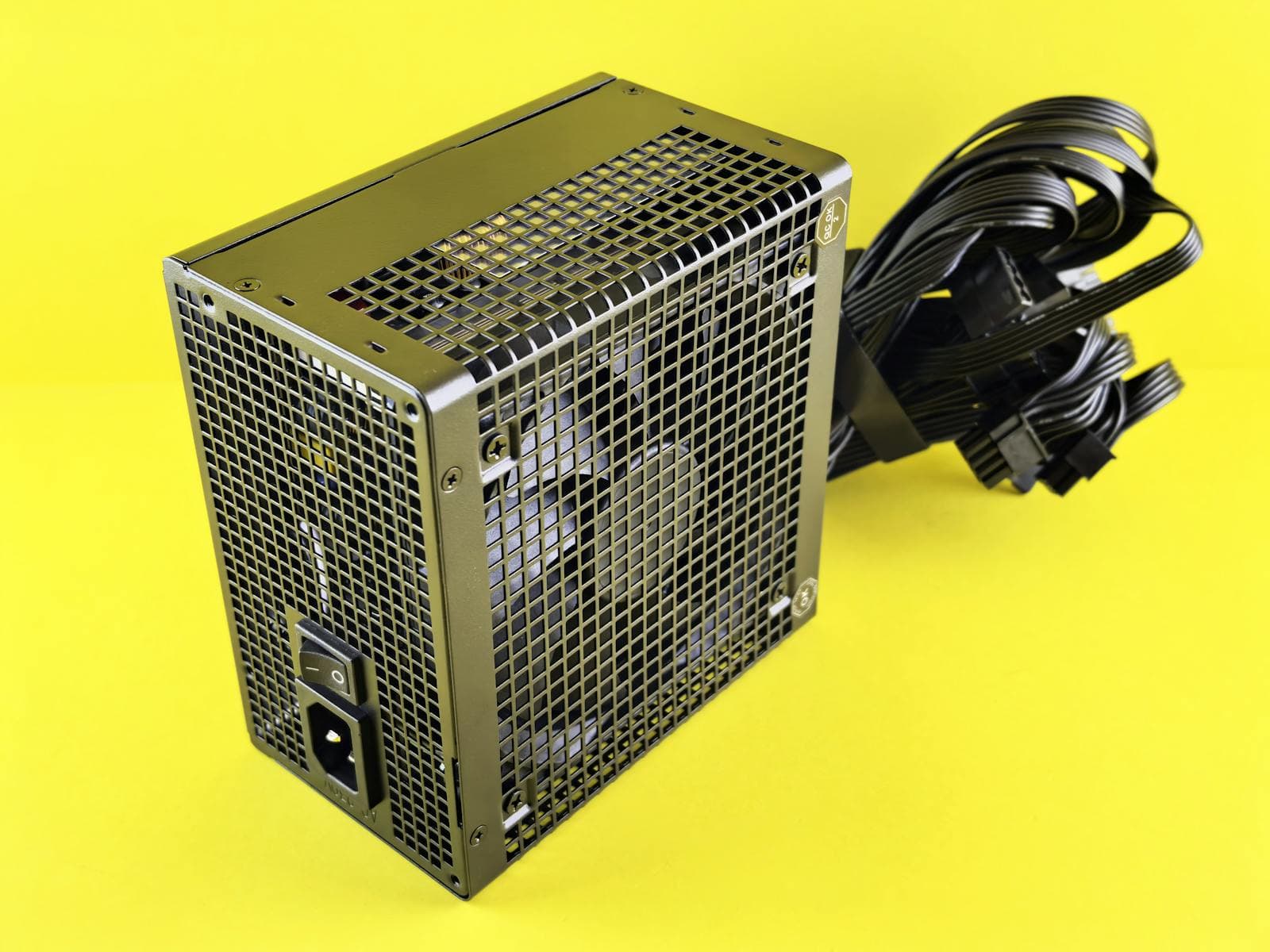
Run these two checks before opening the case again. They fix more new builds than most people expect.
-
PSU switch on the back of the unit. The PSU has a rocker switch on its back panel. It needs to be in the "I" position (on), not "O" (off). This is the most frequently overlooked check in a first build. If it's set to "O," the PC will never respond to the power button regardless of everything else.
-
Wall outlet. Plug a lamp or phone charger into the same outlet. If that device doesn't work, the outlet is the problem. Try a different outlet or check your breaker. If you're using a surge protector, try plugging the PSU directly into the wall — surge protectors can fail in ways that cut power without any indication.
Front Panel Connectors: the Most Common Reason a New Build Won't Start
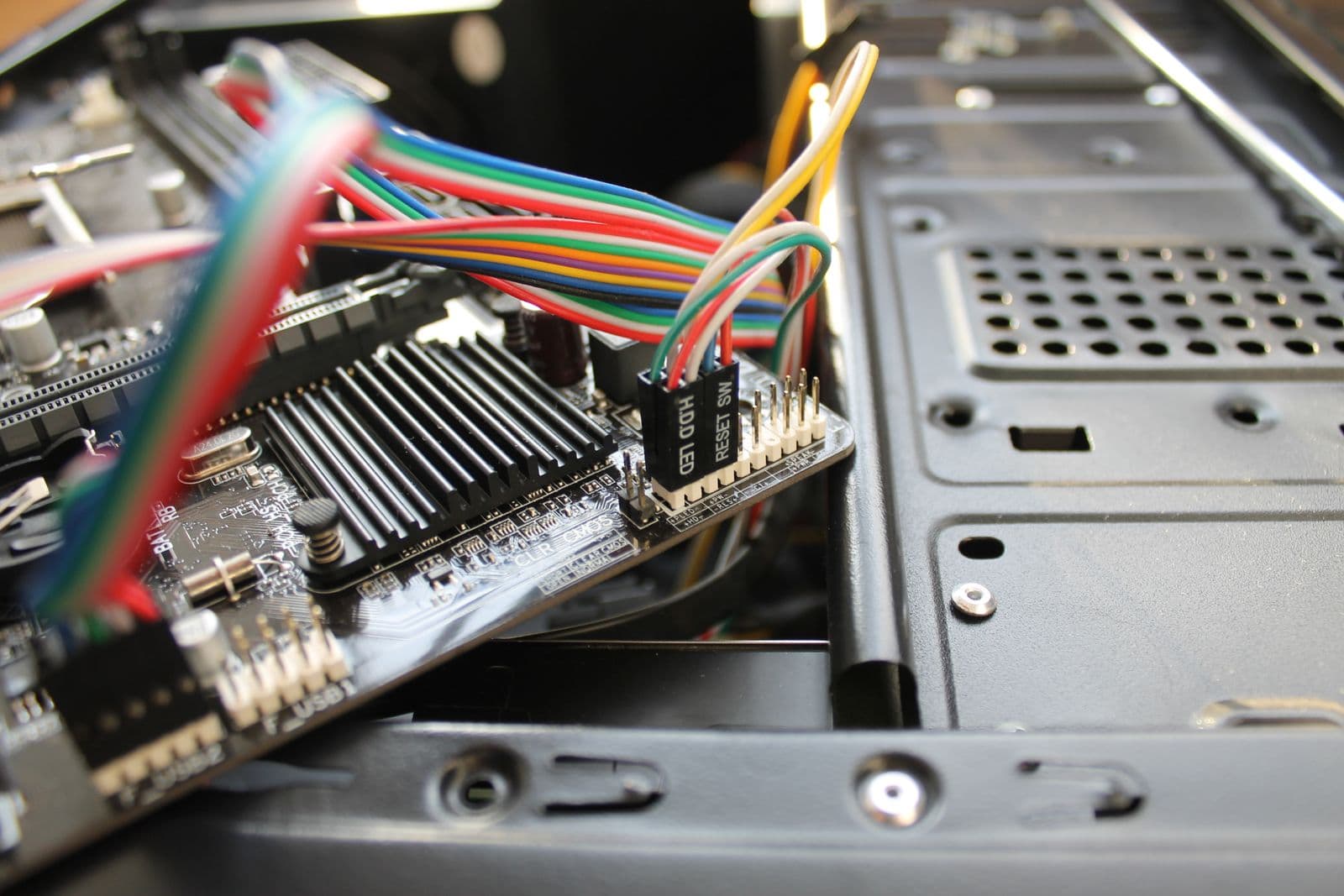
The front panel header is a cluster of small two-pin connectors at the bottom of the motherboard. Each one connects a case function to the board: power button, reset button, power LED, drive activity LED. Getting the power button connector wrong is the leading reason a new build shows no response when you press the button.
The power button connector is labeled PWR_SW on the wire coming from the case. It connects to two specific pins on the motherboard's front panel header. The correct pin positions are in your motherboard manual — find the front panel header diagram, which shows exactly which pins are PWR_SW, which are reset, and which are LED positive and negative. The silk-screen printing on the board is often too small to read; the manual is the only reliable source.
The screwdriver test bypasses the case button entirely and confirms whether the connector is the problem. With the PC plugged in and the PSU switched on, locate the two PWR_SW pins on the motherboard (check the manual for their location). Briefly touch both pins simultaneously with the metal tip of a screwdriver. If the PC starts, the front panel connector was miswired or the case button itself is faulty. Re-check placement against the manual and reseat it on the correct pins.
Reseat the 24-Pin and CPU Power Cables
Two power cables run from the PSU to the motherboard. Both must be fully connected. Missing or partially seated either one will prevent the system from starting.
24-pin ATX connector. This is the large rectangular connector along the right edge of the motherboard. Unplug it completely, then push it back in until the latch clicks. A partially seated 24-pin looks connected but isn't making full contact — use more force than feels comfortable, and listen for the latch to engage.
4+4 or 8-pin EPS connector. This cable sits near the top-left corner of the motherboard, sometimes tucked behind the CPU cooler or near the case's top panel. It's labeled CPU or EPS on the cable. Forgetting this cable is the most common reason a new build turns on for two seconds then immediately shuts off. Without it, the board shuts the system down as a safety measure. Find the cable, push it in until it clicks.
CPU fan header. Connect the CPU cooler's fan cable to the CPU_FAN header on the motherboard — a 4-pin connector near the CPU socket, labeled CPU_FAN or CPU_FAN1. Some boards will refuse to boot or will shut down immediately if no fan is detected on this header, since they treat a missing fan signal as a potential CPU overheating risk. The cable must go to the CPU_FAN header specifically, not a generic case fan header (CHA_FAN or SYS_FAN).
Modular PSU cables. On a modular PSU, both ends of each cable need to be connected: one end into the PSU's modular sockets, one end into the component. Some builders connect only one end. Check both ends of the 24-pin and CPU cables.
Extension cables. If you're using aftermarket cable extensions, the extension plugs into the end of the PSU cable and the other end goes to the component. Extensions don't plug directly into the PSU's modular sockets — they're pass-through sleeves, not standalone cables.
Reseat RAM and GPU, and Check Your Motherboard Standoffs
RAM and GPU seating issues cause a large share of "no POST" problems, where the system powers on but can't complete its Power-On Self-Test (POST) — which means no display signal and no Windows.
RAM. Pull every RAM stick out. Install just one stick in the slot your motherboard manual recommends for single-stick operation. This is typically labeled A2 or DIMM_B1, usually the second slot from the CPU, not the first. Press the stick down firmly until both side clips click into place. Try booting with this single stick before reinstalling the second.
GPU. A missing or improperly seated GPU will not prevent the system from powering on — it only causes display issues, not power failure. If the PC shows no signs of life at all, the GPU is not the cause. If your CPU has integrated graphics, the most useful step here is actually to remove the GPU entirely and connect the monitor to the motherboard's output. If the system powers on without the card, the GPU needs attention: reseat it by pressing it down into the PCIe slot until the retention latch at the far end clicks, then give it a gentle side-to-side wiggle. Any movement after seating means it wasn't fully locked — pull it out and reseat with firm, even downward pressure along the full length of the card.
Motherboard standoffs. Standoffs are the brass hex spacers that elevate the motherboard off the case floor. A standoff placed where your specific motherboard has no mounting hole creates an electrical short by contacting bare copper on the underside of the board. Count the standoffs already installed in your case and compare them to your motherboard's mounting hole positions. Remove any standoff that doesn't align with a hole.
Read Your Motherboard's Debug LEDs
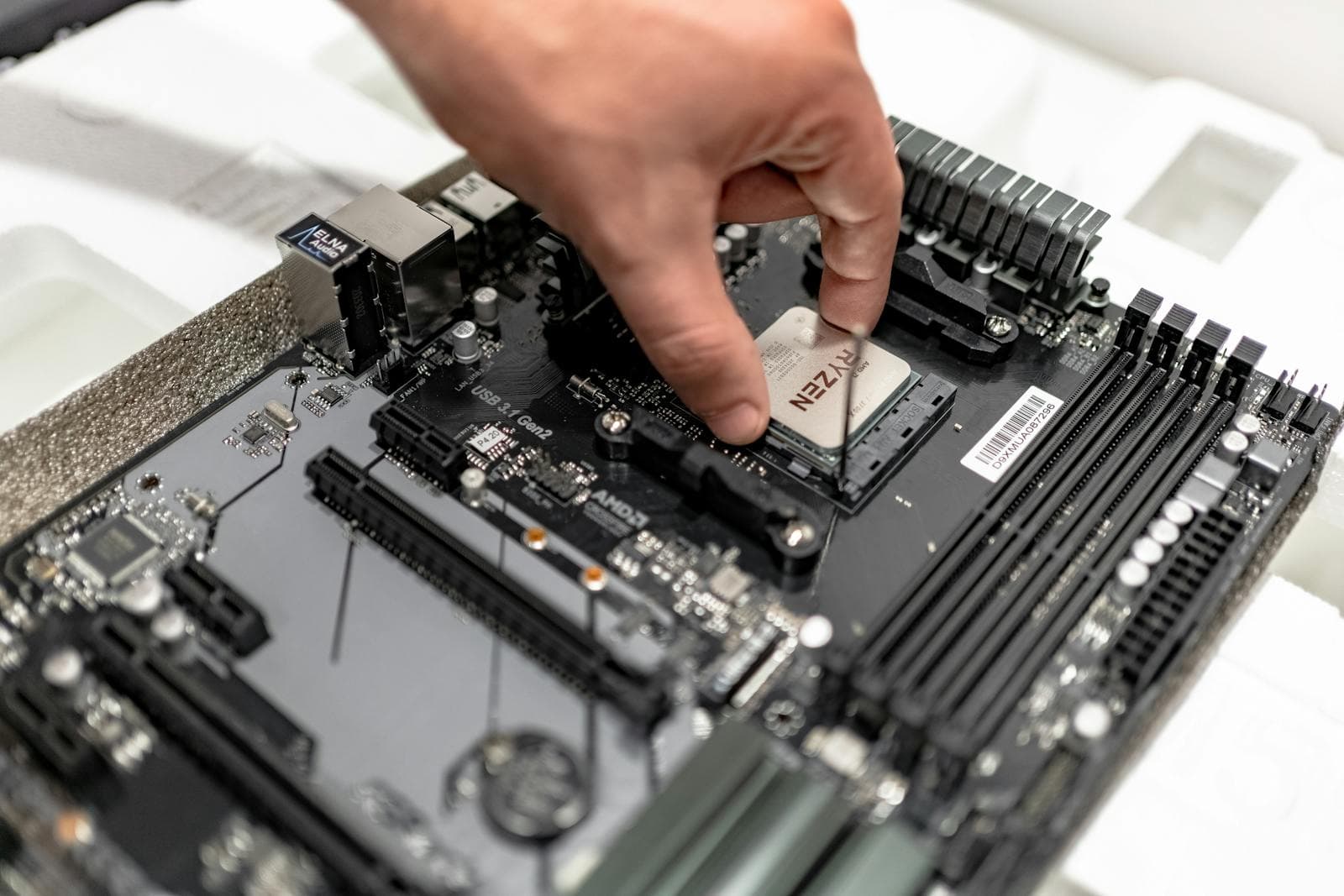
Most current mid-range and high-end motherboards — B650, Z890, and B860 boards in particular — include four diagnostic LEDs that show exactly which component is failing during startup. They're typically located in the top-right corner or the bottom-right edge of the board.
The four LEDs are labeled CPU, DRAM, VGA, and BOOT. They light up in sequence during POST and go off as each component clears. A LED that stays lit when the system stalls is pointing directly at the problem:
| Debug LED | What it indicates | First thing to check |
|---|---|---|
| CPU | CPU not initializing | CPU power cable, CPU seating, socket pins |
| DRAM | RAM not detected | Reseat sticks, single stick in correct slot, check RAM compatibility |
| VGA | GPU not detected | Reseat GPU, check PCIe power connectors, try different PCIe slot |
| BOOT | No storage device found | Unplug all drives and retry, check BIOS boot order |
Some higher-end boards use a Q-Code display instead: a small two-digit hexadecimal readout on the board. The number it freezes on maps to a specific error in your manual's Q-Code table. Look it up before doing anything else — it narrows the problem to a single component.
Clear the CMOS
The CMOS is a small CR2032 coin-cell battery on the motherboard that maintains your BIOS settings when the PC is unplugged. Clearing it resets the BIOS to factory defaults. This is useful when a board was previously used in another system with saved settings, or when a factory BIOS flash isn't fully compatible with your specific hardware combination.
Do this step after reseating all cables and components. It's most relevant when the system gets some power but won't POST or won't output a display signal. If the system powers on and even reaches a BIOS screen but a setting you changed is now causing the no-boot, see the how to enter BIOS guide for what a normal first BIOS screen should show before you start resetting anything.
Method 1: Battery removal. Shut down and unplug the PC from the wall. Locate the coin-cell battery on the motherboard — it's a large, flat, shiny disc, looks like a watch battery. Pop it out with a fingernail or a small flathead screwdriver, wait five full minutes, then reinstall it. Power the PC on.
Method 2: CLRTCMOS jumper. Many boards include a dedicated header labeled CLRTCMOS or CLR_CMOS. With the PC unplugged, short those two pins with a screwdriver tip for about five seconds, then remove the screwdriver and try booting. This is faster and more reliable than the battery method. Your manual shows the jumper's location.
Test Outside the Case
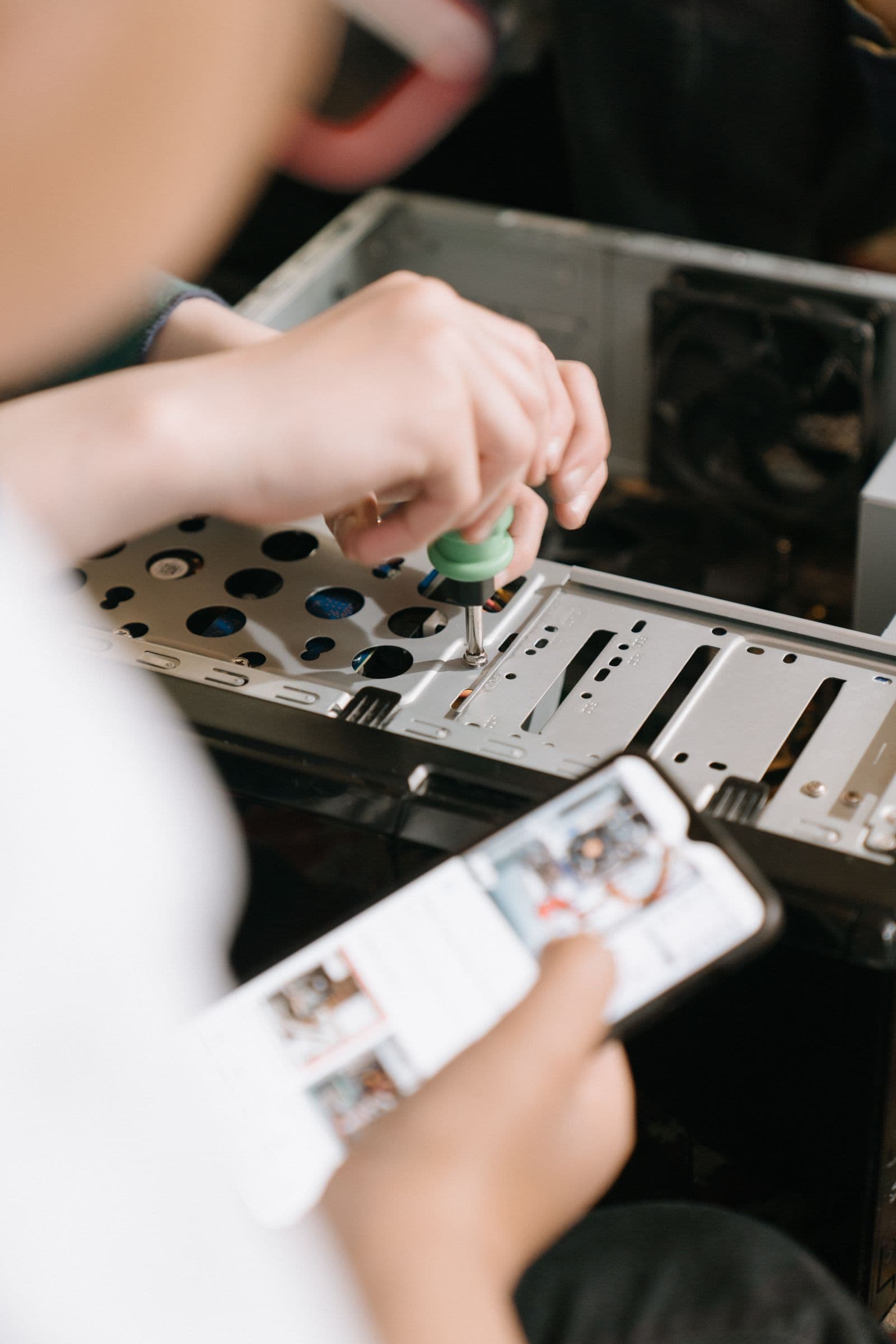
If every step above checks out and the PC still won't start, the case itself may be causing the problem. An extra standoff, a loose panel screw contacting the board, or the motherboard touching a metal edge can create a short that blocks startup.
Remove the motherboard from the case. Place it on a non-conductive, flat surface: the cardboard box it shipped in is ideal. Avoid metal surfaces and avoid setting it directly on carpet.
Connect only the minimum components:
- CPU with cooler installed
- CPU fan cable connected to the CPU_FAN header
- One RAM stick in the recommended slot
- GPU only if your CPU has no integrated graphics; otherwise leave it out to eliminate a variable
- 24-pin ATX power cable
- 8-pin or 4+4 CPU power cable
Leave all storage drives, case fans, front panel LEDs, and USB headers disconnected. Short the PWR_SW pins on the board directly using a screwdriver.
If the system boots outside the case, something inside was causing a short. The most likely culprits are an extra standoff in a position with no matching motherboard hole, or a case panel contacting a solder point on the underside of the board. Inspect the case interior carefully before reinstalling.
PC Powers On But Has No Display
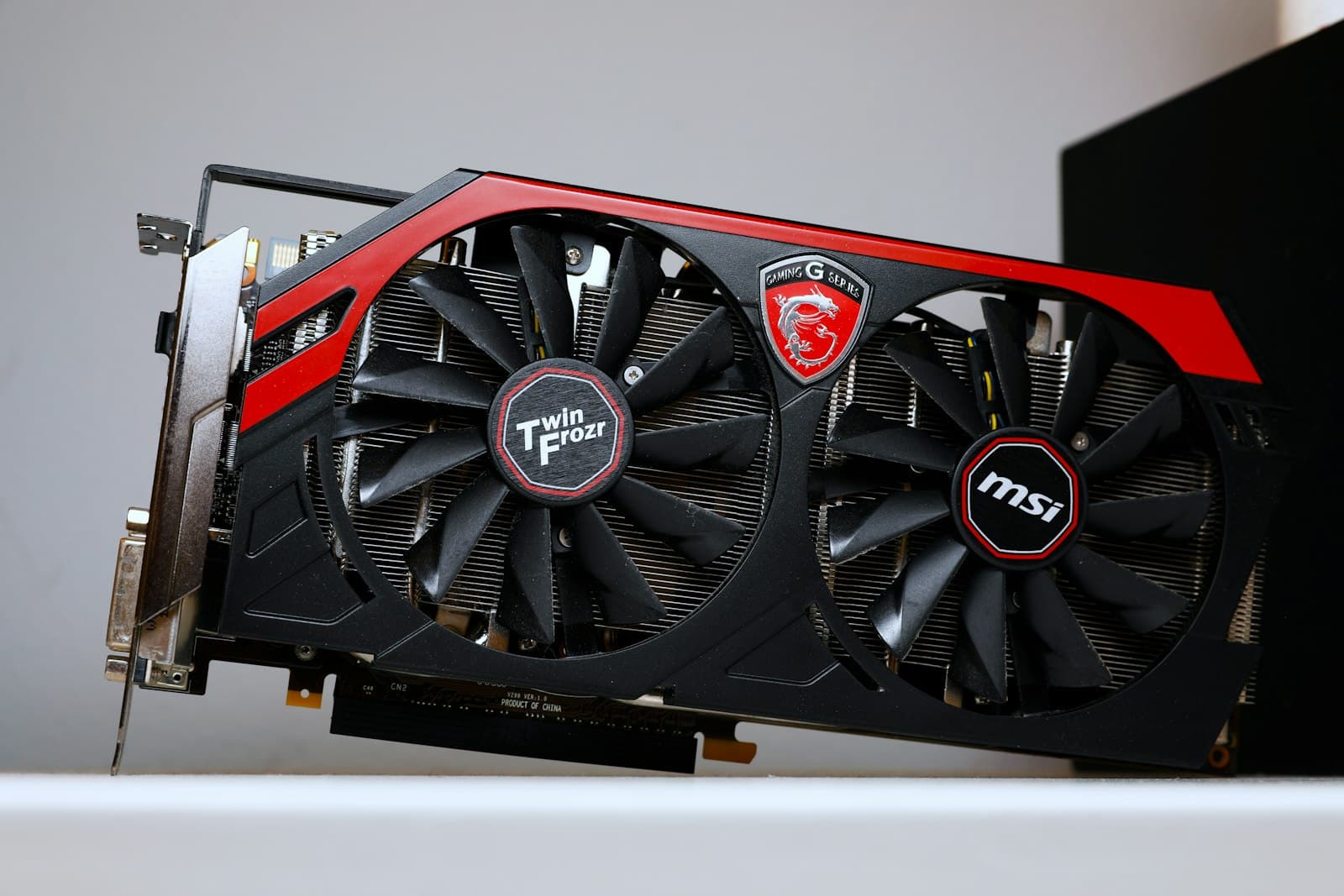
Fans spinning, RGB lit up, keyboard responding, but a blank monitor is a different problem from a dead system. The PC is alive — something is blocking the video signal from reaching the screen. Work through these checks in order.
1. Move the cable to the GPU. The motherboard's rear I/O panel usually includes HDMI and DisplayPort outputs, but these only work when the CPU has integrated graphics and no dedicated GPU is installed. With a GPU in the PCIe slot, the board often disables those motherboard outputs entirely. Move the monitor cable to the DisplayPort or HDMI port on the GPU itself.
2. Check GPU power connectors. A GPU that's seated in the slot but missing its 6+2 or 8-pin power connectors from the PSU will commonly spin its fans while producing no video. Confirm every connector the GPU requires is fully inserted and latched.
3. Install one RAM stick in the correct slot. Remove all RAM sticks. Install a single stick in the slot your manual specifies for single-channel operation — usually A2 or DIMM_B1, the second slot from the CPU. The wrong slot, especially slot 1 on many boards, will block POST and leave the display dark.
4. Swap the cable or port. HDMI and DisplayPort cables fail more than people realize. Try a different cable. Try the GPU's other output ports. Try the DisplayPort input if you've been using HDMI, or vice versa.
5. Try a different display. Connect the PC to a TV or a second monitor to rule out a problem with the display itself.
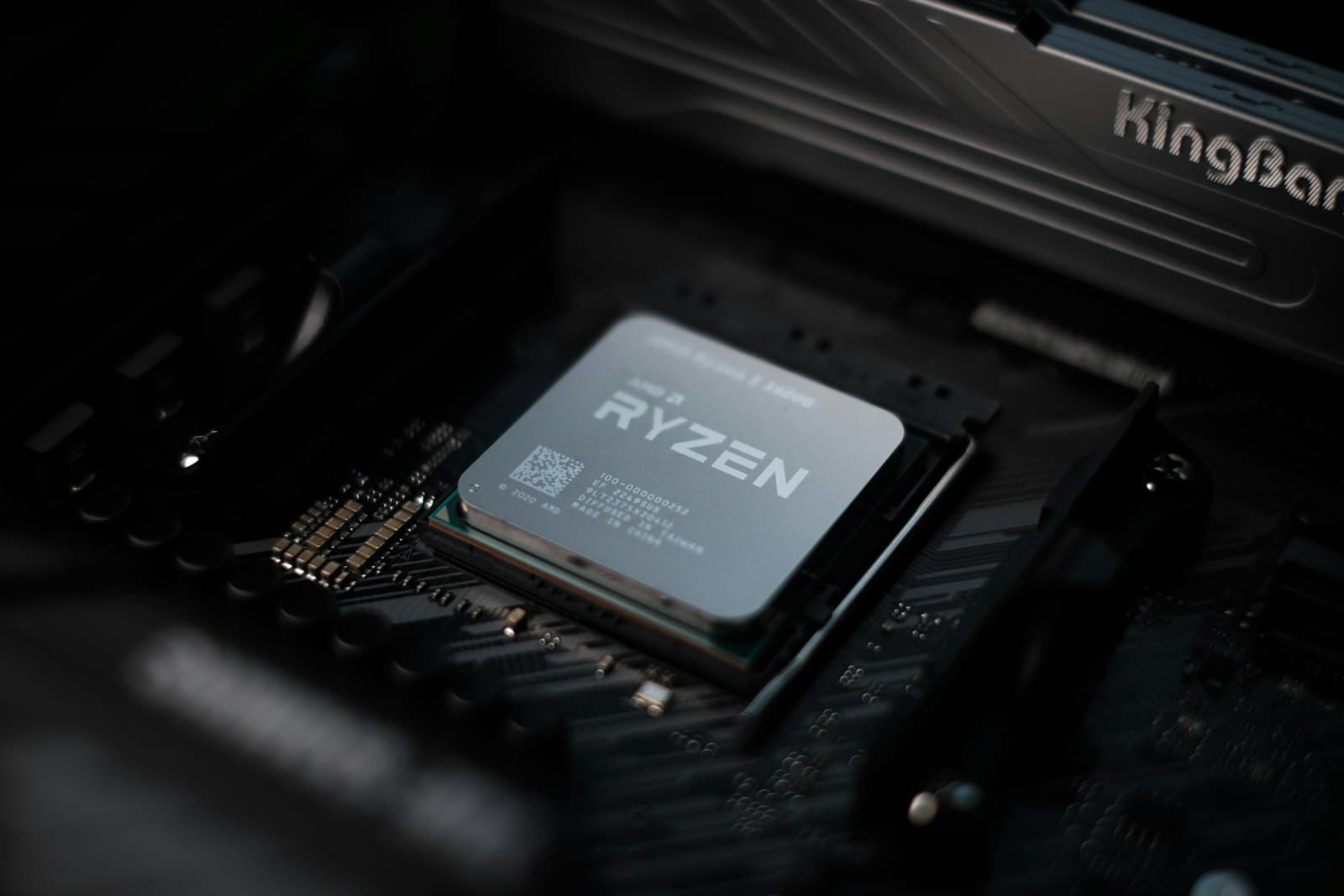
6. Remove the GPU and use onboard video. If your CPU includes integrated graphics (most Intel Core Ultra and AMD Ryzen processors do), pull the GPU out entirely and connect the monitor to the motherboard's HDMI port. If you get a display, the GPU is the problem: it may be DOA, or it may need a BIOS update for your platform. Check your motherboard manufacturer's support page for a BIOS update before concluding the GPU is faulty.
When None of This Works: Isolating a Dead Component
If every step above has been completed and the PC still won't start, a dead-on-arrival (DOA) component is now the most likely explanation. Retailers including Amazon have a 30-day no-questions DOA return policy on components — you're not stuck with a broken part.
PSU paperclip test. This confirms whether your power supply is delivering power. Unplug the 24-pin connector from the motherboard. Find the green wire on that connector — there's exactly one. Bridge the green wire and any adjacent black (ground) wire using a straightened paperclip. Plug the PSU into the wall and flip its switch. If the PSU fan spins, the unit is working. If nothing happens, the PSU is likely the dead component.
Suspect a DOA motherboard when the PSU passes the paperclip test, you've tested with minimal components outside the case, cleared the CMOS, and the board still shows no standby LED and no response to shorting the PWR_SW pins directly on the header. A dead board from the factory is rare, but it happens.
Contact your retailer's support line or the manufacturer's RMA department. Most motherboard makers have online RMA forms and will cover shipping on confirmed DOA units.
Frequently Asked Questions
How do I know if my PC is getting any power at all? Press the power button and look for any sign of life: fan movement, RGB lighting, or a small standby LED near the 24-pin connector area on the motherboard. Zero response almost always means the PSU switch on the back is off, the wall outlet isn't working, or the 24-pin cable isn't making proper contact. One of those three covers the majority of completely dead builds.
Why does my new build turn on for 2 seconds then shut off? Almost always the CPU power cable. The 4+4 or 8-pin EPS connector near the top-left corner of the motherboard supplies power directly to the CPU. Without it fully seated, the board boots briefly then shuts down as a safety measure. Find that cable, push it in until it clicks, and try again.
Can wrong RAM placement cause no display? Yes. Incorrect RAM slots can prevent POST entirely. Remove all sticks, install just one in the slot your motherboard manual recommends — usually labeled A2 or DIMM_B1, one slot away from the CPU. Slot 1, closest to the CPU on many boards, will block the system from outputting any display signal when used for single-stick testing.
How do I know if my motherboard might be dead? After checking all cables, reseating RAM and GPU, clearing CMOS, and testing outside the case on cardboard, a board with still no response is likely DOA. Confirm the PSU is working with the paperclip test first. If the supply is fine but shorting the PWR_SW pins directly on the board produces nothing, contact your retailer.
If the build is running now, the next step is first boot, BIOS setup, and drivers. The how to build a gaming PC guide covers everything from first boot through Windows and driver installation. Once you're booted into Windows, the post-build testing checklist walks through confirming every part is recognized and stress testing the CPU, GPU, and RAM before you trust the machine.
If you haven't bought parts yet, the PC Builder at MaxMyBuild checks every compatibility constraint automatically before you purchase: socket matching, RAM type, PSU wattage against your CPU and GPU power draw (covered in more detail in the TDP guide), and case clearance. Starting from a verified parts list means most of the problems above never come up on build day. The PC build compatibility guide covers the full list of what needs to match if you want to check it manually. For the mistakes that cause these failures in the first place, the common PC building mistakes guide covers what to check before you ever close the case.