How to Build a Gaming PC — Complete Beginner's Guide
This guide contains affiliate links. If you buy through them, we may earn a commission at no extra cost to you.
Building a gaming PC takes 4–8 hours for a first build — often longer. The physical process is simpler than it looks — mostly plugging in connectors and tightening a few screws. The hard part is choosing compatible parts before you buy anything. The PC Builder at MaxMyBuild generates a fully compatible parts list matched to your budget automatically, so you start the build with every component already checked for compatibility.
This guide walks through every step from components and tools through first boot and driver setup.
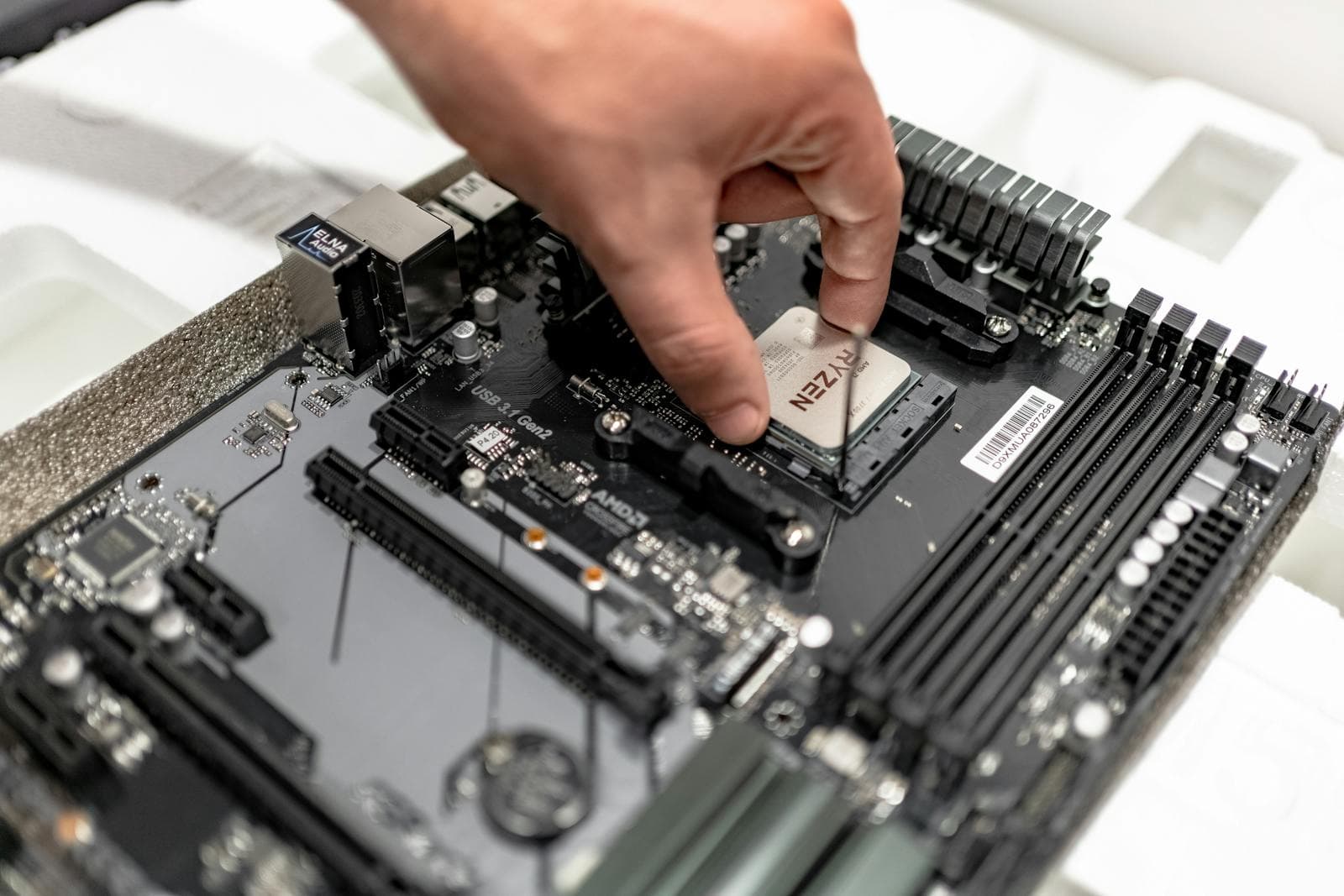
What Do You Need to Build a Gaming PC?
Gaming PC Components List
Every complete gaming PC desktop needs these eight components. Nothing else is required.
| Component | What it does | Typical cost | Key compatibility check |
|---|---|---|---|
| CPU | Processes game logic, AI, and physics | $100–$400 | Must match your motherboard's socket (AM5, LGA1700, LGA1851) |
| GPU | Renders every frame on screen | $200–$700 | Confirm physical clearance in your case |
| RAM | Short-term system memory | $60–$180 | DDR4 or DDR5 — must match your motherboard's supported type |
| Motherboard | Connects and powers every component | $90–$200 | Determines CPU socket and RAM type |
| NVMe SSD | Stores Windows and your games | $70–$120 | Minimum PCIe 4.0 recommended; seats in M.2 slot |
| PSU | Converts wall power to DC voltages | $70–$120 | Must cover your CPU + GPU power draw with headroom |
| Case | Houses and protects everything | $45–$100 | Check GPU clearance length and motherboard form factor |
| CPU Cooler | Prevents CPU overheating | $0–$60 | Stock cooler included with many CPUs; aftermarket for Ryzen 7+ |
Before buying, confirm all parts are compatible using the PC build compatibility guide. If you haven't bought parts yet, the PC Builder handles this automatically.
For specific motherboard recommendations by socket and budget — ATX, mATX, and Mini-ITX picks for both AM5 and LGA1851 — see the best gaming motherboard guide for 2026.
For GPU selection: the GPU performance-per-dollar chart ranks every current card by value. For specific picks by budget and resolution, see the GPU buying guide.
For the case, a mesh front does more for temperatures than any other single choice — the best airflow PC case guide ranks in-stock cases by measured CPU and GPU thermals.
Tools You Need
- Phillips-head screwdriver — a magnetic tip prevents dropped screws from falling into the board
- A clean, flat, well-lit surface (a kitchen table works fine)
- Zip ties or velcro cable ties — for basic cable management
- Anti-static wrist strap — optional; touching the metal case frame before handling components achieves the same effect
That's the complete tool list. Nothing else is required.
Step 1 — Prepare Your Workspace
Clear a flat, well-lit surface. Lay out your motherboard box — you'll use the anti-static bag it came in as a work surface for CPU installation. Keep the case box nearby for packaging waste.
Before touching any component, touch the metal frame of your PC case to discharge static electricity. Do this once at the start of your session.
Leave all screws and small parts in their packaging until you need them. GPU bracket screws, case standoffs, and M.2 screws look similar — lose one mid-build and you're hunting through boxes.
Step 2 — Install the CPU
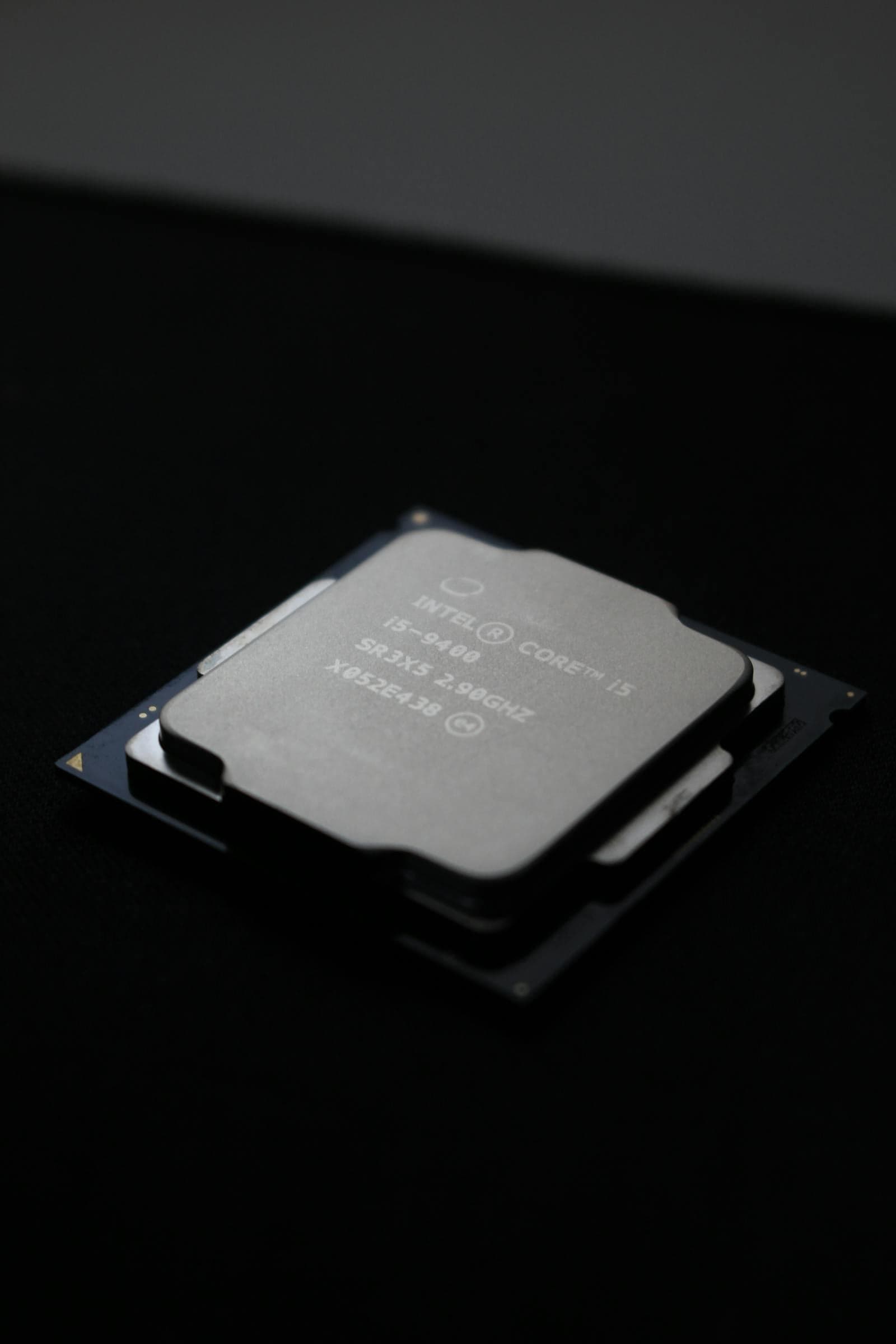
The CPU (central processing unit) is the processor. It handles game logic, physics, AI, and all OS tasks. Install it directly into the motherboard before the board goes into the case.
AMD Ryzen AM4 (PGA socket — pins on the CPU):
- Open the ZIF lever — lift it fully vertical
- Align the CPU's gold triangle marker with the triangle on the socket corner
- Drop the CPU straight down — it seats with zero force. If it doesn't drop in freely, recheck the orientation and try again; do not push
- Lower the lever to lock
AMD Ryzen AM5 (LGA socket — pins on the motherboard): AM5 works like Intel: the pins are on the motherboard, not the CPU. The CPU still drops in without force, but the socket lever is spring-loaded and takes firm downward pressure to close — this is normal. You may hear a slight creak or pop. That's the lever compressing against the socket frame, not the CPU bending.
- Lift the retention lever
- Align the CPU's triangle marker with the socket corner marker
- Lower the CPU flat into the socket — no lateral pressure
- Press the lever down firmly until it locks
Intel (LGA1700 / LGA1851 socket):
- Open the retention arm to lift the load plate
- Align the CPU with the two guide notches — one orientation fits, the other doesn't
- Lower the CPU in and close the load plate over it
- Lock the retention arm — it takes significant pressure on the lever and may creak; that's expected
Most common mistake at this step: applying force to seat the CPU. CPUs should drop in with alignment, not force. Pushing a misaligned CPU bends pins on the motherboard (LGA) or on the CPU (AM4 PGA) — both are difficult to repair.
The plastic protective cover on Intel sockets pops off automatically when you close the retention arm — keep it in case you need to return the motherboard.
Step 3 — Install the CPU Cooler
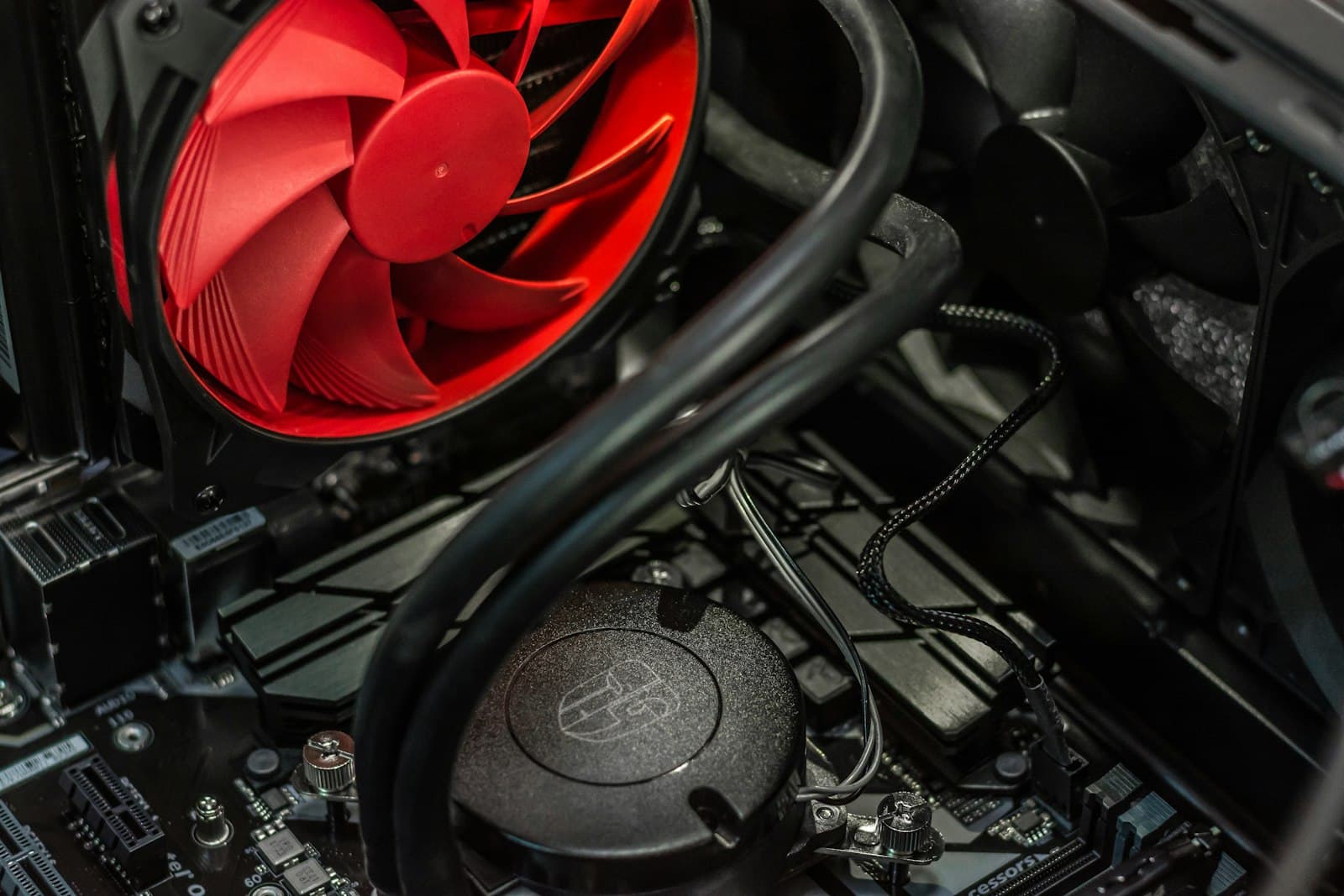
The CPU cooler (heatsink and fan, or all-in-one liquid cooler) keeps the CPU temperature under control during gaming. Most budget CPUs include a stock cooler — it's sufficient for non-overclocked builds. If you haven't picked one yet, the best CPU cooler guide for 2026 covers ranked picks from air coolers under $35 to 360mm AIOs.
Applying thermal paste: if your cooler doesn't come with pre-applied paste (stock coolers usually do), place a pea-sized dot in the center of the CPU's IHS (the flat metal top). The mounting pressure spreads it correctly — do not spread it manually. The how to apply thermal paste guide covers the right pattern for your specific CPU shape and how to clean off old paste if you're reseating a cooler.
Install sequence:
- Install the mounting backplate on the rear of the motherboard if your cooler requires one (the instructions specify)
- Lower the cooler onto the CPU, aligning the mounting holes
- Tighten the screws diagonally — top-left → bottom-right → top-right → bottom-left. Even pressure prevents warping and ensures full contact
- Connect the cooler's fan cable to the CPU_FAN header on the motherboard (labeled, located near the CPU socket)
Most common mistake at this step: forgetting the CPU_FAN cable. Without it, the motherboard's thermal protection shuts the PC down within seconds of powering on. Connect the fan header before the board goes in the case, while it's easy to reach.
Step 4 — Install the RAM
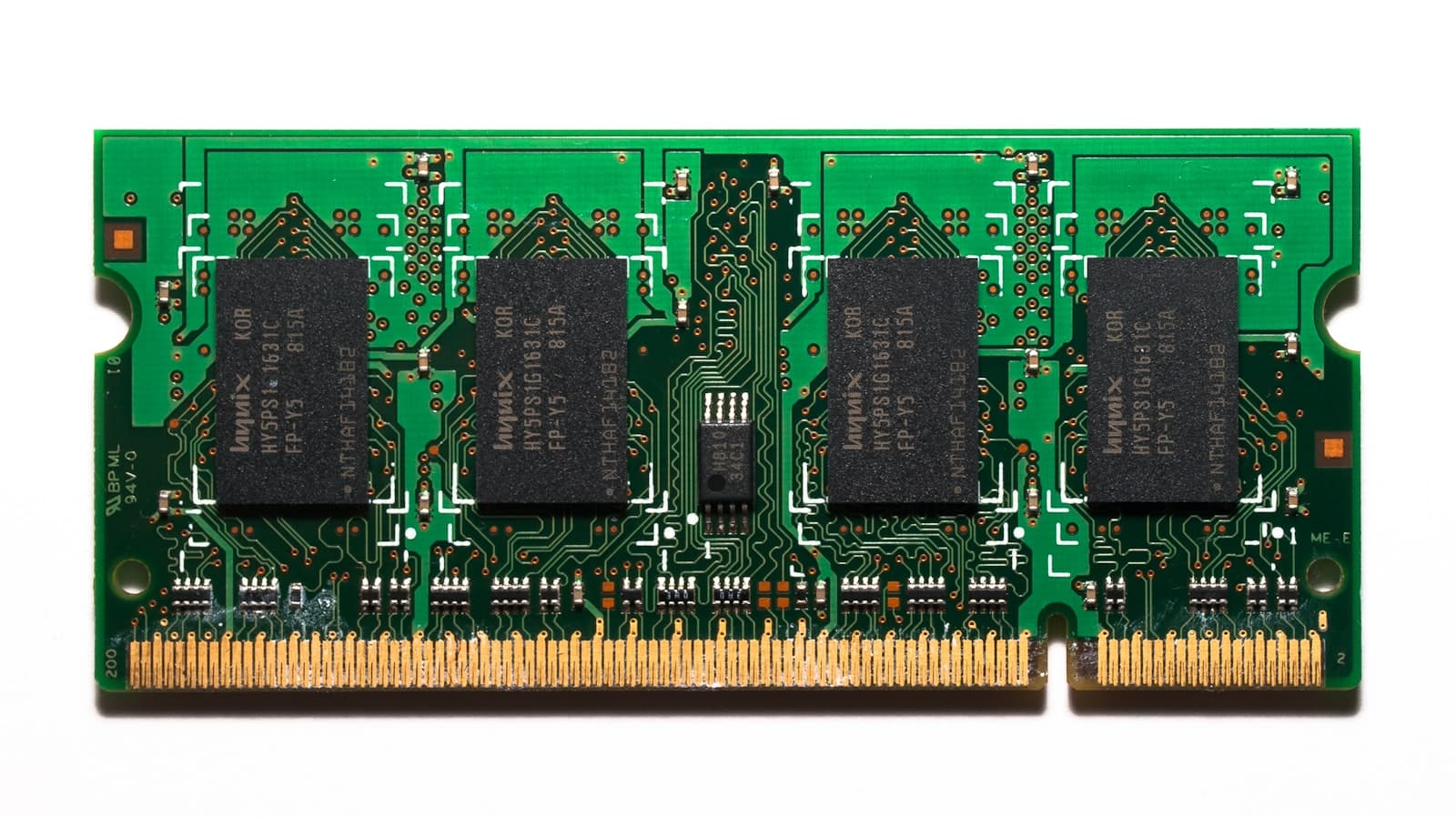
RAM (random access memory) is the system's working memory — it holds active game data the CPU needs immediately. Install 16GB minimum (two 8GB sticks) for gaming in 2026. A single 16GB stick works but runs in slower single-channel mode; two sticks of 8GB run in dual-channel mode, which gives a measurable gaming performance improvement.
Which slots to use: most motherboards use slots 2 and 4 (not 1 and 2) for dual-channel. The slots are usually color-coded or labeled in the manual. Check the manual diagram — this is a two-minute step that matters.
Install sequence:
- Open the retention clip(s) on the correct slots
- Align the RAM notch with the notch in the slot — RAM is keyed and only fits one way
- Press down firmly and evenly on both ends until the clip(s) snap closed
You'll hear a click when both clips engage. Partially seated RAM causes POST failures that can look like other problems.
AMD AM5 note: enable XMP or EXPO in BIOS after first boot. RAM ships running at its base speed (4800 MHz by default) — not the rated speed on the box. XMP (Intel) or EXPO (AMD) loads the correct profile. On a DDR5-6000 kit, this is a free performance gain that takes 30 seconds to enable.
For full compatibility details on speed ratings, slot counts, and mixed-kit behavior, see the RAM compatibility guide.
Step 5 — Install the NVMe SSD
The NVMe SSD (solid-state drive using the PCIe interface) is where Windows and your games install. It's a small card about the size of a stick of gum (roughly 80mm long) that plugs directly into the motherboard's M.2 slot. No power or data cables needed; it draws both through the slot itself.
Which M.2 slot to use: most motherboards have 2–3 M.2 slots. Use the primary slot (usually labeled M2_1 or the one nearest the CPU). On budget B-series boards, some M.2 slots share PCIe lanes with the GPU — using the wrong one can reduce GPU bandwidth. Check your motherboard manual if you have multiple slots and aren't sure which is primary.
Install sequence:
- Remove the M.2 screw (tiny Phillips head) and the heatspreader plate if your board has one — set the screw somewhere safe, it's easy to lose
- Insert the SSD at a 30-degree upward angle into the slot — the connector end goes in first. Push until the connector is fully engaged and no gold contacts are visible
- Gently press the free end down flat — it should lie level with the board
- Secure with the M.2 screw and replace the heatspreader
Most common mistake at this step: pressing the SSD flat before the connector is fully inserted. If you push it down before it's fully in, you'll only get intermittent drive detection. The connector end must be fully engaged first (no gold contacts visible at the slot entrance), then press the free end down.
If you're using a SATA SSD instead: it needs both a SATA data cable (plugs into the motherboard's SATA port) and a SATA power cable from the PSU. NVMe M.2 has neither requirement.
If you haven't yet chosen your SSD, see the best SSD for gaming in 2026 guide for drive recommendations at every budget tier.
Step 6 — Mount the Motherboard in the Case
Mounting the motherboard requires installing the I/O shield first, verifying standoff placement, and securing the board with even torque. The standoff check is the most commonly skipped step and can cause a short that prevents the board from ever powering on.
Check if your board has an integrated I/O shield. Many current motherboards (ASUS ROG, MSI MEG, Gigabyte AORUS) have a pre-attached I/O shield that's part of the motherboard itself. If your board has one, skip the separate I/O shield step. If it came with a separate metal plate, install that first.
-
Install the I/O shield (if separate). The I/O shield is the metal cutout plate that covers the rear port cluster. Press it into the rectangular opening at the back of the case from the inside — it snaps in along four edges. Press all four corners firmly until they're flush with the case. A partially-seated shield will prevent the motherboard from lying flat and cause the screws to mis-align.
-
Verify standoffs. Standoffs are the pre-installed brass hex posts on the motherboard tray: threaded cylinders about 6mm tall that hold the motherboard away from the metal case and prevent a short circuit. Confirm there's a standoff for every hole in your motherboard, and no standoffs where there are no holes. An extra standoff touching the board's PCB surface will short it. Most cases pre-install standoffs in the ATX pattern; check that yours match your board's hole layout.
-
Lower the motherboard into the case, aligning the rear ports through the I/O shield openings. All port clusters should protrude through cleanly with no shield tabs covering a port.
-
Secure with the motherboard screws — start with two opposite corners to hold position, then fill in the rest. Tighten until snug, not overtight. Overtightened motherboard screws can crack the PCB.
Step 7 — Install and Connect the PSU
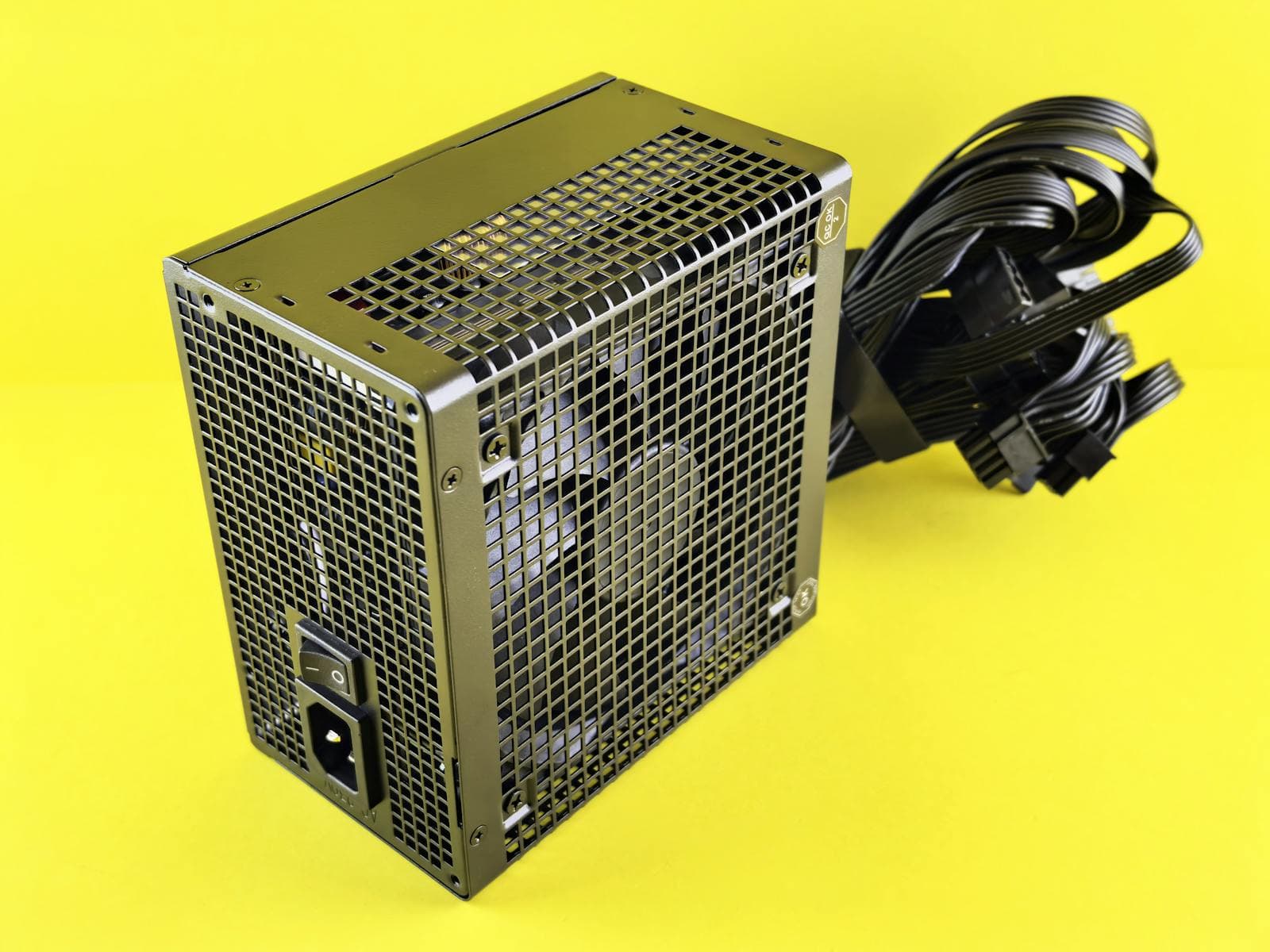
The PSU (power supply unit) converts AC power from your wall outlet into the DC voltages every component in the build depends on. Install it before the GPU — a large GPU can block the front panel headers and the EPS cable routing channel at the top of the case.
Mount the PSU:
- Slide it in through the rear PSU cutout (most modern cases mount the PSU at the bottom, fan facing down toward the vented floor)
- Align the screw holes and secure with the four provided PSU screws
Route cables before plugging them in. Pass the 24-pin ATX and EPS cables through the case's rear cable routing holes first, then connect them from the other side — this is the main technique for clean cable management and it needs to happen before the GPU goes in.
Connect these cables — in this order:
| Cable | Destination | Notes |
|---|---|---|
| 24-pin ATX | Main motherboard connector | The large rectangular plug, right side of the board |
| 4+4 or 8-pin EPS | CPU power | Top-left of the motherboard, labeled CPU or ATX12V — route this before the GPU |
| PCIe power | GPU | 6+2 pin or 12VHPWR — connect after GPU is installed in Step 9 |
| SATA power | SATA drives only | Only needed if you have a SATA SSD or HDD; not needed for M.2 NVMe |
The EPS cable is the most forgotten cable in first builds. It runs near the top of the board — sometimes behind a cable routing channel that the GPU will partially cover once installed. Route and plug in the EPS cable now, before the GPU goes in.
For PSU wattage selection and brand recommendations, see the TDP and PSU sizing guide. For budget builds, a 650W 80+ Bronze from Corsair, Seasonic, or be quiet! covers any GPU in the $200–400 range paired with a mid-range CPU.
Step 8 — Connect the Front Panel Headers
The front panel headers are the thin cables from the case that connect the power button, reset button, and LEDs to the motherboard. Do this before installing the GPU — a large GPU can block the front panel header cluster and the bottom USB headers, making them nearly impossible to reach.
The header block is on the bottom-right of most motherboards, labeled F_PANEL or PANEL1. Open your motherboard manual to the header diagram — it shows exactly which pin takes which connector.
| Header | Pins | Function |
|---|---|---|
| PWR_SW | 2-pin | Power button |
| RESET_SW | 2-pin | Reset button |
| PWR_LED+ / PWR_LED- | 2-pin | Power LED |
| HDD_LED | 2-pin | Storage activity LED |
Also connect:
- USB 3.0 header → the wide 19-pin case cable to the USB3_1 port on the board
- USB-C header → if your case and board both have one
- HD_AUDIO header → front audio jack connector
- Case fans → connect to SYS_FAN or CHA_FAN headers (not CPU_FAN — plugging a case fan into CPU_FAN can cause thermal shutdown warnings or incorrect fan behavior). For recommendations on which fans to use, see the best case fans guide.
Common mistake: swapping power and reset button connectors. If pressing the power button does nothing on first boot, swap the PWR_SW and RESET_SW headers — they're electrically identical.
Step 9 — Install the GPU
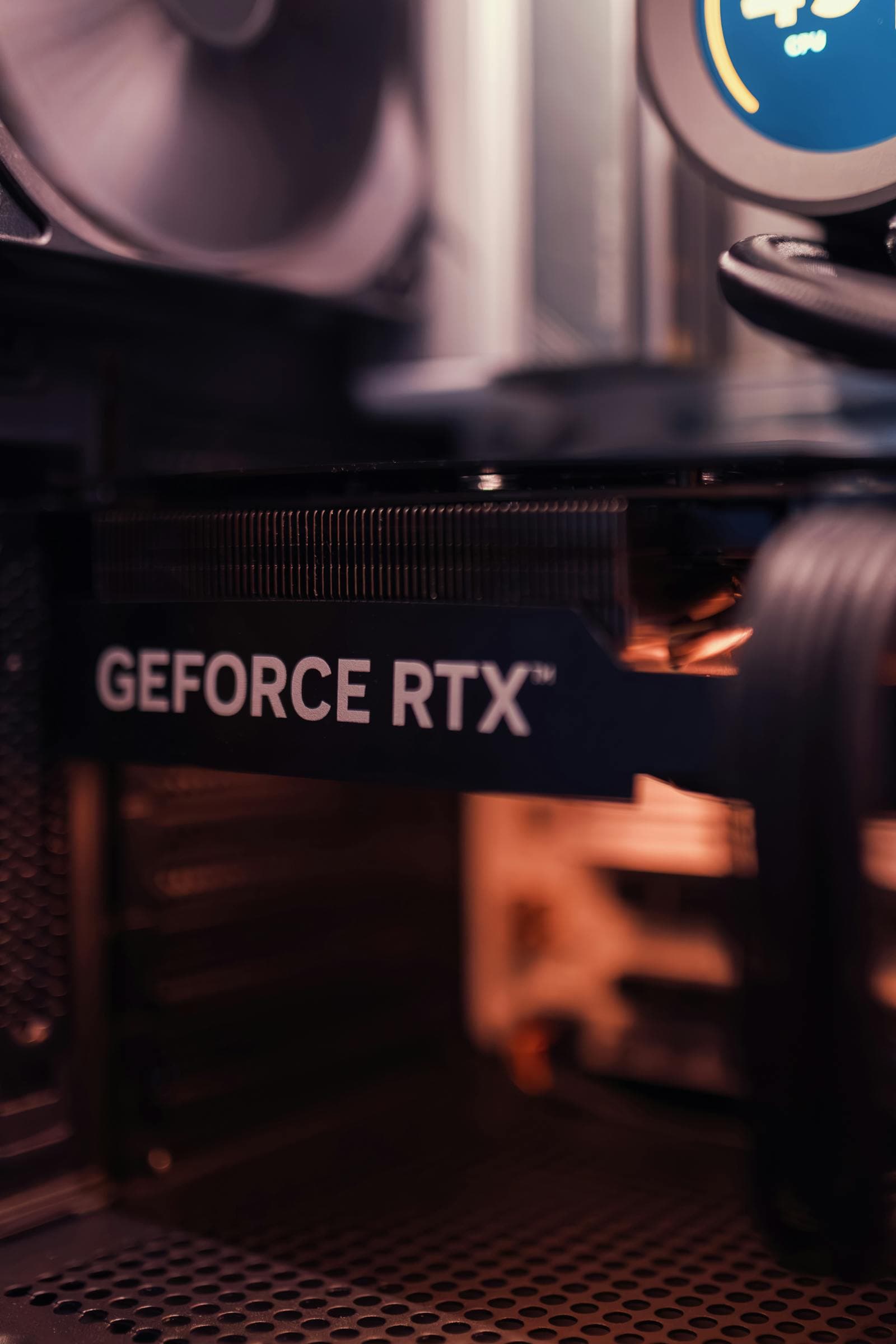
The GPU (graphics processing unit) renders every frame you see on screen. Install it after the PSU and front panel headers are connected, since a full-size GPU can block access to both.
Install sequence:
- Remove the case PCIe slot cover(s) for the slots your GPU will occupy — most full-size GPUs take up two slots
- Open the PCIe slot's retention clip at the far end of the slot
- Align the GPU connector with the PCIe x16 slot — the long slot nearest the CPU — and press down firmly until the retention clip snaps closed
- Secure the GPU's metal bracket to the case with the bracket screws
Connect GPU power. Nearly every discrete GPU requires a separate power connector from the PSU. Look for 6+2 pin or 12VHPWR (16-pin) connectors on the GPU — connect the corresponding cables from your PSU. A GPU without its power cable connected will not produce a display signal and may not POST.
12VHPWR connector warning (RTX 4000/5000 series): If your PSU doesn't have a native 16-pin 12VHPWR cable and you're using the bundled adapter, connect each 8-pin end to a separate cable run from the PSU — not two connectors daisy-chained from a single cable. Daisy-chaining can cause unstable power delivery under load. Also: the 12VHPWR connector must be fully seated with no visible gap between the connector and GPU. A partially inserted connector is the primary cause of melting GPU connectors on RTX 40-series cards.
For GPU physical clearance before buying, see the GPU size and case clearance guide.
Step 10 — Cable Management and Closing the Case
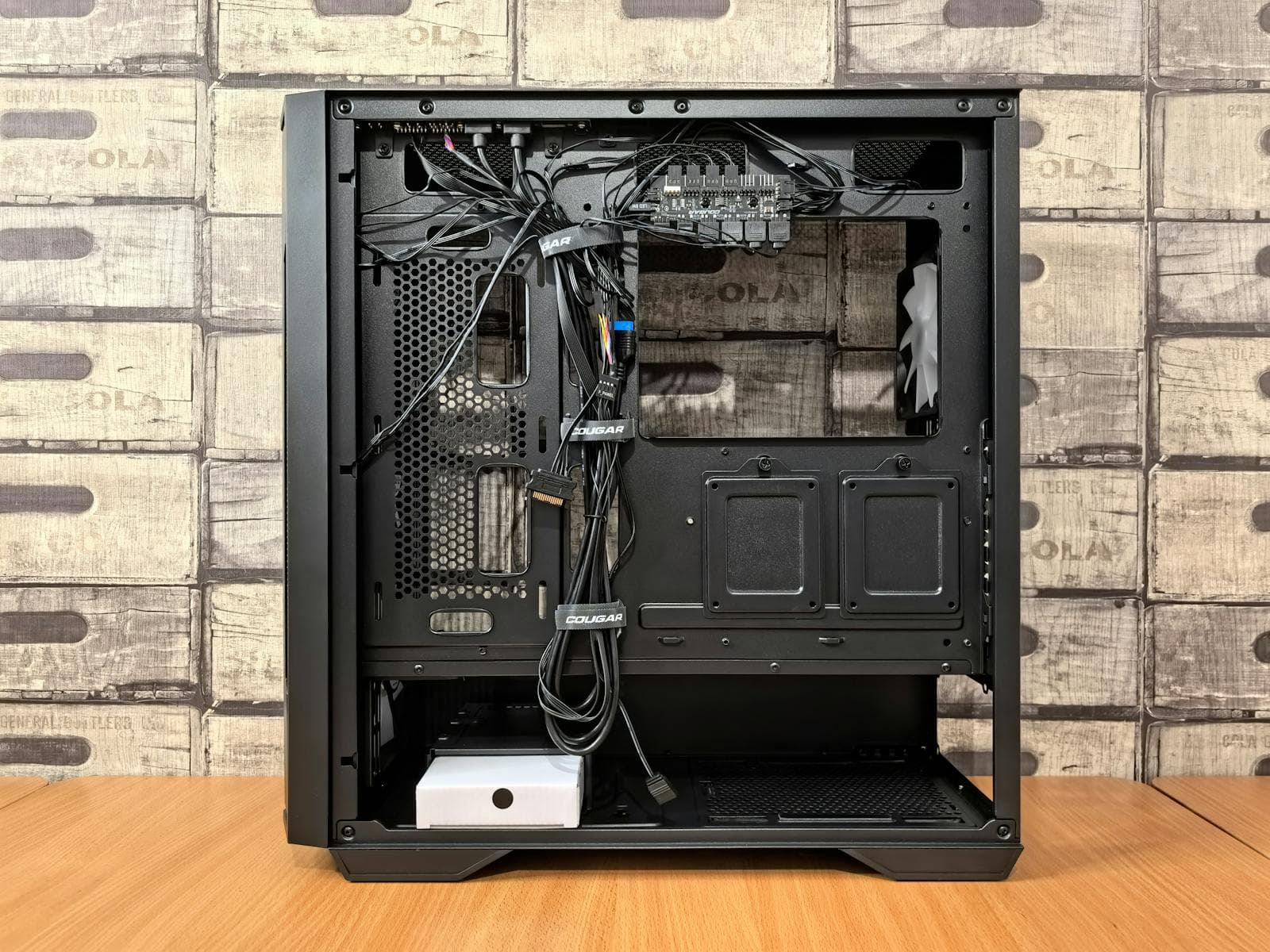
Cable management doesn't need to be perfect — it needs to be good enough that the side panel closes and no cables are near spinning fans.
Practical approach:
- Long cables (24-pin ATX, EPS) should already be routed through the rear cable management holes from Step 7 — tuck any excess length behind the rear panel
- Zip-tie or velcro bundles of cables to the rear routing points on the motherboard tray. Group the GPU power cables separately; they're thicker and run from the back of the case toward the GPU
- GPU power cables have enough slack to tuck behind the GPU shroud — keep them away from front intake fans, which will make noise if cables contact them
- Case fans should be connected to SYS_FAN headers (you did this in Step 8) — check none of the fan cables loop near the blades
- Check the area around the CPU cooler — any loose zip ties or cable ends near the fan blades can cause rattling or contact noise
Close the side panel. If it doesn't close cleanly, something is in the way — most often a cable looping forward from the top of the case, or the GPU power cable not fully tucked. Do not force the panel.
Step 11 — First Boot and BIOS Setup
Plug in the monitor, keyboard, mouse, and power cable. Press the power button.
What a successful first boot looks like: fans spin up, any RGB lights activate, and within 5–10 seconds the BIOS splash screen or BIOS interface appears on your monitor.
In BIOS, do three things immediately:
- Confirm all components are detected — the main overview should list your CPU model, RAM (in GB), and your SSD
- Enable XMP or EXPO — look in Advanced settings. AMD boards label it EXPO; Intel boards label it XMP. This sets RAM to its rated speed instead of the slow default
- Set boot priority — if you're installing Windows next, plug in your Windows USB drive and set it as the first boot device
PC won't reach BIOS: the most common causes, in order: missing EPS (CPU power) cable; RAM not seated (press both sticks down harder); GPU power cable not connected; front panel PWR_SW in the wrong header. Remove the GPU and test with CPU-integrated graphics if your CPU has them — AMD G-series CPUs (Ryzen 8600G, 9700G, etc.) have integrated graphics, and most Intel Core i3, i5, and i7 without an 'F' suffix do too (Intel's 'F' suffix means no integrated graphics) — to isolate whether the GPU or the rest of the build is the problem.
BIOS update note (AM5 and LGA1851): If the build won't POST at all — no fans, no display, nothing — and your CPU is newer than the motherboard's original launch date, the board may ship with a BIOS that doesn't yet support that CPU. Most current AM5 and LGA1851 boards support BIOS FlashBack: a feature that lets you update the BIOS from a USB drive without a CPU installed. Download the latest BIOS from your board manufacturer's support page, copy it to a FAT32 USB drive, and follow the FlashBack steps in the manual. This is the fix when everything else checks out but the board still won't boot.
Step 12 — Install Windows
Before the build day, create a bootable USB installer on another PC:
- Download the official Windows 11 Media Creation Tool from Microsoft
- Run it and select "Create installation media for another PC"
- Use a USB drive with at least 8GB of free space
Installing Windows:
- With the USB drive inserted, restart and boot to it (press F11 or Delete at startup for the boot menu)
- Select your language and region
- Select the NVMe SSD as the installation destination — not the USB drive
- Windows installs, reboots two or three times, and walks through initial account setup
If you enter your license key during installation, Windows activates automatically. You can skip activation and activate later from Settings → System → Activation.
Step 13 — Install Drivers
After Windows setup is complete, install drivers in this order:
- Chipset drivers — download from your motherboard manufacturer's support page (ASUS, MSI, Gigabyte, or ASRock). These configure the core platform components and should be installed first.
- GPU drivers — download from Nvidia (GeForce drivers or GeForce Experience), AMD (Adrenalin Software), or Intel (Arc Control). GPU drivers unlock full graphics performance and are required for most games.
- Remaining motherboard drivers — audio (Realtek), network (LAN or Wi-Fi), and USB controllers. Usually available as a bundle on the same support page as the chipset drivers.
Windows Update installs generic versions of most drivers automatically — manufacturer drivers replace them with the optimized and current versions.
After drivers are installed, restart and run a stress test (OCCT Free or Prime95) for 15 minutes. No shutdowns or crashes means the build is stable and thermally sound.
Common Mistakes That Ruin a First Boot
Most failed first boots trace back to one of these:
| Mistake | Symptom | Fix |
|---|---|---|
| Missing EPS cable (CPU power) | PC powers on then shuts off in 2–3 seconds | Connect the 4+4 or 8-pin cable near the top of the motherboard |
| RAM in wrong slots | POST fails / BIOS shows 0GB | Move sticks to slots 2 and 4 (check manual) |
| GPU power not connected | No display signal / won't POST | Connect all 6+2 pin or 12VHPWR connectors |
| CPU_FAN header not connected | PC shuts down after ~5 seconds | Connect cooler fan to CPU_FAN, not a case fan header |
| I/O shield not installed first | Motherboard ports misaligned | Remove board, install shield, reinstall |
| XMP/EXPO not enabled | RAM at 4800 MHz instead of 6000 MHz | Enable in BIOS: Advanced → XMP or EXPO toggle |
| Front panel PWR_SW reversed | Power button does nothing | Flip the 2-pin PWR_SW connector |
For the full list of mistakes to avoid before you even start — incompatible parts, PSU sizing, GPU clearance, and more — see the common PC building mistakes guide.
Does MaxMyBuild Handle Parts Selection Automatically?
Yes. The PC Builder at MaxMyBuild takes your budget and generates a fully compatible build — GPU matched to resolution, CPU matched to GPU tier, PSU sized to actual TDP. You skip the compatibility research entirely and start the build with a confirmed parts list.
If you're still planning the budget, the gaming PC budget guide covers where to spend more and where to cut without hurting performance.
For platform and socket decisions — whether to build AM5, LGA1700, or LGA1851 — the CPU buying guide explains the tradeoffs by budget and upgrade path.
Frequently Asked Questions
How long does it take to build a gaming PC?
4–8 hours for a first build, often longer. Most first-timers read every manual section before touching anything, go back to re-read it, then proceed carefully — that's exactly the right pace. The fear of breaking something expensive is rational, and slowing down is what prevents most mistakes. An experienced builder puts together the same system in 45–60 minutes. Plan for a full day on your first build; rushing causes mistakes that take longer to diagnose than slowing down would have.
Is building a gaming PC difficult?
No. The physical process is mostly tightening screws and plugging in connectors — nothing requires precision engineering or special skills. The part that trips people up is choosing compatible components before the build. The PC build compatibility guide covers every compatibility rule, or use the PC Builder to skip that step entirely.
Do I need an anti-static wrist strap?
No — most builders don't use one. Discharge static by touching the metal frame of the PC case before handling any component. The risk of static damage is real but low on most flat, dry surfaces. If you're building on thick carpet in a low-humidity environment, a strap is worth adding.
What's the most common mistake when building a PC for the first time?
Forgetting to connect the CPU power cable — the 4+4 or 8-pin EPS connector near the top of the motherboard. The symptom is the PC turning on briefly and shutting down within 2–3 seconds. Second most common: RAM installed in the wrong slots, leaving it running in single-channel mode instead of dual-channel, which hurts gaming frame rates measurably.
Do I need a copy of Windows to build a gaming PC?
Yes — Windows is not included with any component. A Windows 11 Home license costs $99–$139 depending on the retailer. If you're replacing an old PC with a digital Windows license, that license may transfer automatically when you activate on the new build. Download the Media Creation Tool and create your USB installer before build day so you're not waiting for a download when the hardware is ready.
How do I know if my build is working correctly?
Run three checks after the build: (1) BIOS detects all components at the correct specs (CPU model, RAM at rated speed, SSD); (2) Windows installs and boots cleanly; (3) run a stress test like OCCT or Prime95 for 15 minutes after installing drivers — a stable build completes it without shutdowns, crashes, or thermal throttling.