RAM Compatibility — DDR4 vs DDR5, XMP, and Dual Channel
This guide contains affiliate links. If you buy through them, we may earn a commission at no extra cost to you.
RAM is compatible with a motherboard when the generation matches (DDR4 or DDR5), the speed is within the board's supported range, and the sticks are installed in the correct slots for dual-channel. The three things that actually go wrong: buying the wrong DDR generation (won't physically seat), skipping the XMP/EXPO toggle in BIOS (running at half the speed you paid for), and installing sticks in the wrong slots (single-channel mode, meaningful performance loss on Ryzen).
If you want this validated automatically, the PC Builder at MaxMyBuild matches RAM generation and speed to your motherboard before including any combination in a build.
Quick Compatibility Checklist
Run through this before finalising your RAM:
| Check | What to verify |
|---|---|
| DDR generation | DDR4 or DDR5 matches what your motherboard supports — listed on the board's spec sheet |
| Speed | RAM speed is within the board's maximum XMP/EXPO supported speed |
| Dual-channel slots | Two sticks installed in A2 + B2 (or whatever your board labels as the primary pair) |
| Capacity | 16GB minimum for gaming; 32GB recommended for a build that lasts 3–4 years |
| Matched kit | Both sticks from the same dual-channel kit (same brand, model, and speed) |
DDR4 vs DDR5 — The Generation Check
DDR4 and DDR5 are physically incompatible. The notch position is different — a DDR4 stick will not seat in a DDR5 slot, and forcing it risks damaging the slot. There is no adapter. You must match the RAM generation to whatever your motherboard supports.
Finding which your board takes is straightforward: open the motherboard's spec sheet on the manufacturer's website and look under "Memory Support." It will say "DDR5" or "DDR4" — no ambiguity. Don't rely on Amazon listings or unboxing videos; manufacturers occasionally produce board variants with different specs at the same model name.
Platform reference for 2026:
| Platform | Socket | RAM type |
|---|---|---|
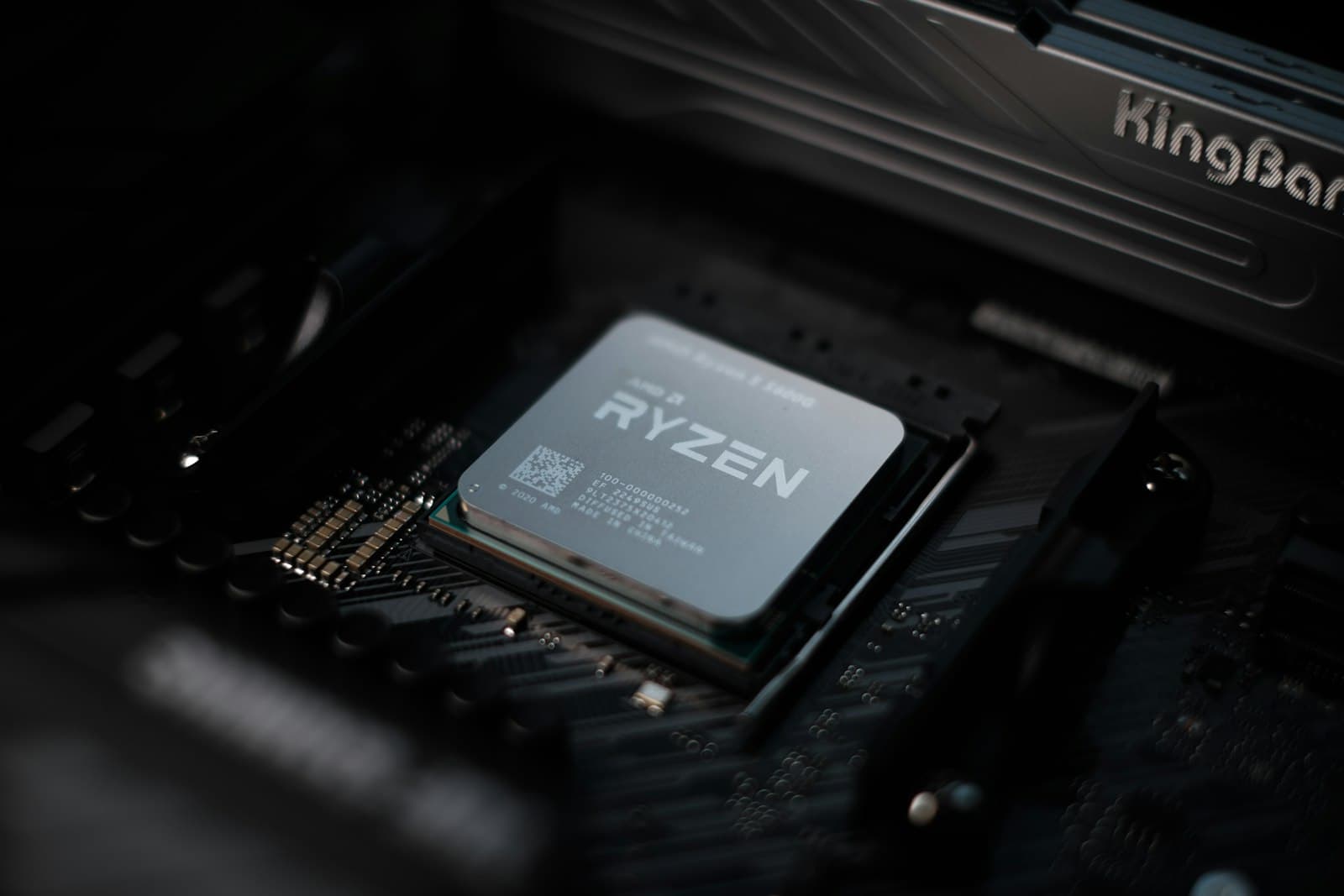
| AMD Ryzen 7000, 8000, 9000 | AM5 | DDR5 only |
| AMD Ryzen 5000 and older | AM4 | DDR4 only |
| Intel Core Ultra 200 (Arrow Lake) | LGA1851 | DDR5 only |
| Intel 12th, 13th, 14th Gen Core | LGA1700 | DDR4 or DDR5 — depends on the board |
LGA1700 is the only platform where the answer isn't automatic — some boards use DDR4, some use DDR5. Both exist within the same CPU generation. Confirm the specific board, not just the CPU.
DDR5 is not always the better choice. DDR5 runs at higher frequencies with lower latency at those frequencies, but it costs more per gigabyte. For budget builds on AM4 platforms (Ryzen 5000), DDR4 remains competitive for gaming. For any new build on AM5 or LGA1851, DDR5 is the only option regardless. For specific kit recommendations at each price point, see the best RAM for gaming 2026 guide.
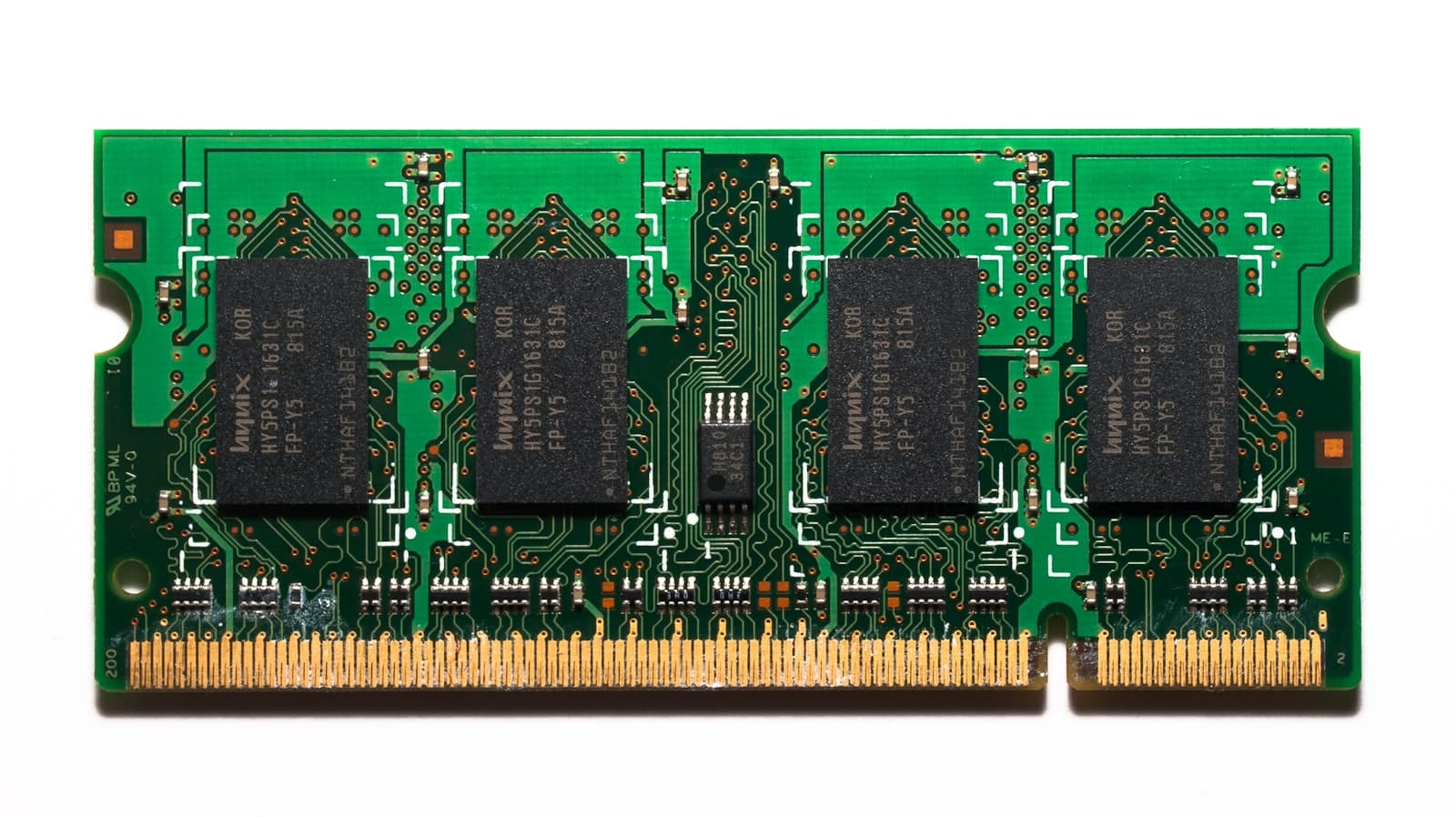
This guide covers desktop RAM (DIMM — Dual In-line Memory Module). Laptops use SO-DIMM — a shorter form factor that is physically incompatible with desktop DIMM slots. The DDR generation, speed, and capacity concepts apply equally to both, but the sticks are not interchangeable between desktop and laptop systems.
RAM Speed and XMP/EXPO — Why Your RAM Might Be Running Slow
By default, RAM runs at its JEDEC base speed (the conservative industry-standard default frequency) — not the speed printed on the label. DDR5 defaults to 4800MHz regardless of whether you bought a DDR5-6000 or DDR5-7200 kit. DDR4 defaults to 2133–3200MHz.
XMP (Extreme Memory Profile) and EXPO (Extended Profiles for Overclocking) are overclock profiles stored directly on the RAM stick. When enabled in BIOS, they tell the motherboard to run the RAM at the rated advertised speed — with the correct timings and voltage already configured.
If you bought DDR5-6000 RAM and haven't enabled XMP or EXPO, you're running at 4800MHz. That's a 20% drop in memory bandwidth for free. Enabling XMP takes about 30 seconds in BIOS:
- Boot into BIOS (usually Delete or F2 at the POST screen)
- Look for "XMP," "EXPO," or "D.O.C.P." under memory or overclocking settings
- Select the profile — usually Profile 1, which is the rated speed
- Save and exit
What if XMP or EXPO causes instability? Some boards — particularly budget B-series boards — have tighter memory controllers that struggle with very high XMP speeds. If the system crashes or fails to POST after enabling XMP, drop the speed one step in BIOS (e.g. from DDR5-6000 to DDR5-5600). The system will be stable and still faster than the JEDEC default.
Speed matters more on AMD Ryzen than Intel. AMD's memory controller is tightly coupled to the Infinity Fabric — the internal interconnect between CPU cores. Running DDR5-6000 vs DDR5-4800 on a Ryzen 9 9900X has a larger real-world impact than the same comparison on a Core Ultra 9 285K. For Ryzen builds, enabling EXPO is especially important.
Boards have a maximum supported XMP/EXPO speed. If your RAM is rated faster than that limit, it will still work — it just downclock to the board's cap. Buying DDR5-7200 for a board that maxes at DDR5-6000 means you paid for frequency headroom you can't use. Check the motherboard's "Maximum Memory Speed" or QVL (Qualified Vendor List) before buying a high-frequency kit.
Dual-Channel RAM — Slots and Configuration
Dual-channel means two RAM sticks working in parallel, nearly doubling the available memory bandwidth. This is the normal operating mode for any two-stick build. The motherboard activates dual-channel automatically when sticks are installed in the correct slots.
Running single-channel instead of dual-channel costs real performance on all platforms. Single-channel operation can reduce frame rates by 10–15% compared to dual-channel at the same total capacity — the impact is measurable on Intel and AMD builds alike, and most pronounced on AMD Ryzen where the memory controller is directly coupled to the Infinity Fabric clock. A 32GB single-channel build will perform worse than a 32GB dual-channel build at the same speed.
The correct slots are A2 and B2. On most ATX and mATX boards, this means the second slot from the CPU and the fourth slot from the CPU — not the two slots immediately adjacent to each other, and not the two slots closest to the CPU. The silkscreen on the board usually labels them; the manual specifies exactly which pair to populate first.
Why not A1 and B1? The primary slots (A2/B2) are electrically optimised for single and dual-stick configurations. A1 and B1 are secondary slots intended for four-stick builds. Installing two sticks in A1 and B1 will almost always result in single-channel operation, or reduced memory stability at high XMP speeds.
Verify with CPU-Z (free download): open CPU-Z → Memory tab → check the "Channel #" field. It will say "Dual" or "Single." If it says Single and you have two sticks installed, check which slots they're in.
Use a matched kit. Buy RAM as a dual-channel kit — two sticks sold together with the same part number, speed, and timings. Mixing two separately purchased sticks of nominally the same spec can work but creates compatibility risk at high XMP speeds, because the sticks may have slightly different silicon. A matched kit is tested as a pair by the manufacturer. Don't buy a single stick now and plan to add a "matching" stick later — even the same model from the same brand may use different memory chips across production runs.
RAM Capacity — 16GB vs 32GB
16GB (2 × 8GB) is the minimum for gaming in 2026. It handles the vast majority of current titles at 1080p and 1440p without issue. The limitation appears when running Chrome tabs, Discord, and a demanding game simultaneously — background processes eat into the headroom quickly.
32GB (2 × 16GB) is the recommended target for any new build. Games at 1440p and 4K increasingly allocate 12–16GB of VRAM on the GPU side, and system RAM works alongside that. If you're building something meant to last three to four years, 32GB now costs marginally more than 16GB and eliminates a future upgrade.
64GB (2 × 32GB) is for content creation — video editing at high resolutions, 3D rendering, large dataset work. For gaming, it adds no measurable benefit.
Don't buy four sticks when two larger sticks cover the same capacity. A 4 × 8GB (32GB) config uses all four DIMM slots, which creates more electrical load on the memory controller. At high XMP speeds on some boards, four populated slots can destabilise the memory subsystem. A 2 × 16GB kit (also 32GB) is more stable, uses fewer slots, and leaves two slots free for future expansion.
How to Check Your Current RAM Is Running Correctly
Task Manager — no install needed: Open Task Manager → Performance tab → Memory. The speed shown is the actual running speed in MHz. If your DDR5-6000 kit shows 4800MHz, XMP is not enabled in BIOS.
CPU-Z — free download: CPU-Z gives more detail. Memory tab → "DRAM Frequency" shows half the actual speed — this is intentional, because DDR stands for Double Data Rate, so DDR5-6000 runs at a base clock of 3000MHz. Multiply by 2 to get the real speed. The "Channel #" field shows "Dual" or "Single."
Two issues to check for:
- Speed shows JEDEC default (e.g. 4800MHz for a DDR5-6000 kit): XMP or EXPO is not enabled — go into BIOS and toggle it on
- Channel shows "Single" with two sticks installed: the sticks are in the wrong slots — move them to A2 + B2
Common Mistakes That Cause RAM Compatibility Failures
Buying DDR4 for a DDR5 platform (or vice versa). The sticks won't physically seat — the notch positions are different. It's impossible to insert the wrong generation without forcing it and damaging the slot. Always confirm the board generation before ordering RAM.
Not enabling XMP or EXPO. The system boots fine, games run, nothing looks obviously broken — but the RAM runs at 4800MHz instead of 6000MHz, and 20% of the memory bandwidth you paid for is sitting unused. It's a one-toggle fix in BIOS that takes 30 seconds.
Installing two sticks in A1 + B1 instead of A2 + B2. The two slots physically closest to the CPU look like the obvious choice. They are the secondary slots on most boards. Two sticks in A1/B1 usually forces single-channel mode. Check the printed labels on the board or the manual before installing.
Buying four sticks when two larger sticks do the same job. 2 × 16GB is more stable than 4 × 8GB at high XMP speeds, uses fewer DIMM slots, and performs identically for gaming. Buy a 2 × 16GB kit for 32GB builds.
Buying the fastest RAM available without checking the board's maximum XMP/EXPO speed. DDR5-7200 kits look impressive, but a budget B650 board may cap XMP support at DDR5-6000. The RAM will work at 6000MHz — you've just paid for 200MHz of frequency headroom you can never use.
Buying tall RGB RAM without checking CPU cooler clearance. Large dual-tower air coolers overhang the first DIMM slot and can physically prevent tall RAM sticks (44–50mm) from seating. If you're pairing tall RGB RAM with a large tower cooler, check the cooler's listed RAM clearance spec first — this is covered in detail in CPU cooler height and RAM clearance.
Does MaxMyBuild Check This Automatically?
Yes. The PC Builder at MaxMyBuild only pairs DDR5 RAM with DDR5 motherboards and DDR4 with DDR4 — a generation mismatch will never appear in a generated build. Speed compatibility is also validated against the board's maximum supported XMP range.
If you're starting a new build from scratch, RAM compatibility is handled automatically. If you're adding RAM to an existing board, use the checklist above to verify manually.
For a full walkthrough of how the PC Builder works, see How to Use MaxMyBuild.
For the full list of compatibility checks beyond RAM, see the PC Build Compatibility Complete Guide.
Frequently Asked Questions
Will DDR4 RAM work in a DDR5 motherboard?
No. The notch positions are different — DDR4 sticks physically will not seat in DDR5 slots. There's no adapter. Check your motherboard's spec sheet for "DDR4" or "DDR5" under Memory Support.
What is XMP and do I need to enable it?
XMP (or EXPO on AMD) is a profile on the RAM stick that tells the motherboard to run at the advertised speed. Without it, DDR5 defaults to 4800MHz regardless of the kit rating. Enable it in BIOS under memory or overclocking settings — it's a single toggle.
Which RAM slots should I use for dual-channel?
A2 and B2 — the second and fourth slots from the CPU socket, not the two closest to it. Installing in A1 and B1 forces single-channel mode. Check the board's printed labels or manual to confirm the primary pair.
Is 16GB enough for gaming in 2026?
For most titles at 1080p and 1440p, yes. For a build meant to last 3–4 years, 32GB is the better choice — games at higher settings increasingly exceed 16GB total memory usage combined with VRAM.
What happens if my RAM is faster than my motherboard supports?
Nothing breaks — it downclock to the board's maximum. You've paid for frequency headroom you can't access. Check the board's maximum supported XMP speed before buying a high-frequency kit.
What is EXPO and how is it different from XMP?
EXPO is AMD's equivalent to Intel's XMP — both are overclock profiles that enable the RAM's rated speed. Functionally identical; EXPO is the native standard for AM5 boards. Most modern DDR5 kits include both XMP and EXPO profiles on the same stick.