PC Build Compatibility — The Complete Guide
This guide contains affiliate links. If you buy through them, we may earn a commission at no extra cost to you.
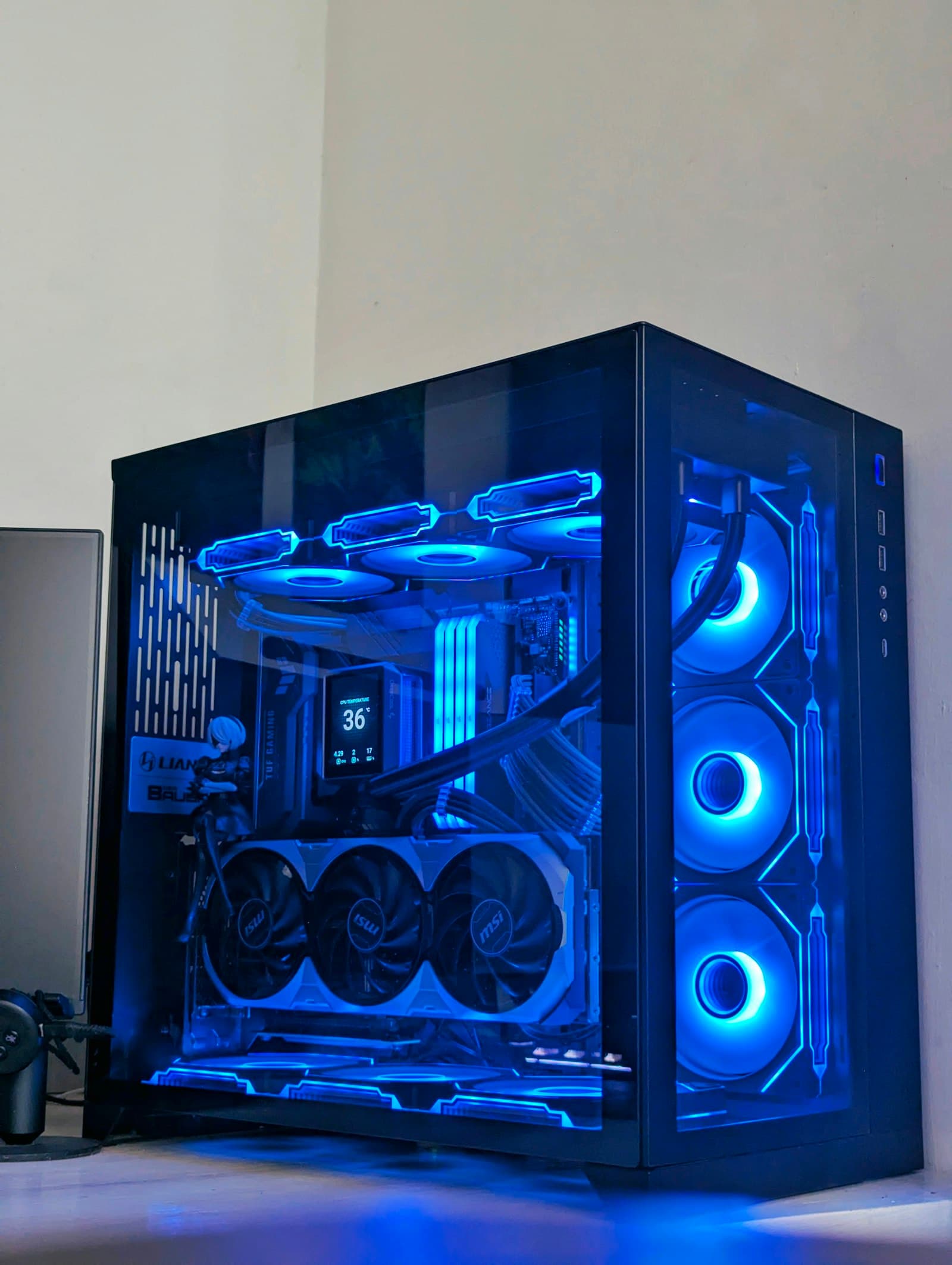
PC parts are compatible when the CPU socket matches the motherboard, the motherboard form factor fits the case, the RAM is the correct type and speed, the GPU and cooler fit physically, and the PSU has the right wattage and correct power connectors for both CPU and GPU. Display outputs and monitor inputs also need to match for your target resolution and refresh rate. Most first-time builders get socket type and RAM generation right — physical clearances, PSU connectors, and display compatibility are where builds actually go wrong.
This guide covers every compatibility check that matters, with specific numbers and real examples. If you want to skip the manual research, the PC Builder at MaxMyBuild handles all of these checks automatically before showing you a build.
Quick Compatibility Checklist
Use this before finalising any parts list:
| Check | What to verify |
|---|---|
| CPU + Motherboard | Same socket (AM5, LGA1851, etc.) and chipset supports that CPU generation |
| Motherboard + Case | Form factor matches — ATX board needs ATX case; mATX and ITX boards need the corresponding case size |
| RAM | DDR5 or DDR4 matches the board; speed is within the board's supported XMP/EXPO range |
| GPU (physical) | Length ≤ case's max GPU length; width (slots) clears case brackets and drive bays |
| GPU Power | GPU's required connector type (8-pin or 16-pin 12VHPWR) is available from the PSU |
| CPU Cooler | Air cooler: height ≤ case's max cooler height. Liquid cooler: radiator size supported by case (e.g. 240mm, 360mm) |
| PSU Wattage + Connectors | Wattage ≥ system TDP + 20–30% headroom; includes 8-pin EPS for CPU and correct GPU cables; SFX for compact cases |
| Storage (interface) | NVMe drive needs M.2 slot; SATA drive needs SATA port — both on the motherboard |
| Storage (physical) | SATA SSDs/HDDs need case drive bays (2.5" or 3.5"); PSU needs SATA power connectors |
| PCIe Generation | GPU, CPU, and motherboard PCIe (Peripheral Component Interconnect Express) generation ideally match (4.0 or 5.0); mismatch works but reduces GPU bandwidth |
| Display Output | GPU output version (HDMI 2.1, DisplayPort 1.4/2.1) supports your monitor's target resolution and refresh rate |
| Audio | Motherboard rear I/O and case front panel header match your sound setup |
Twelve checks. Most builds fail on one of the physical ones — GPU length or cooler height — because those aren't obvious from a parts list.
Why Compatibility Matters More Than It Looks
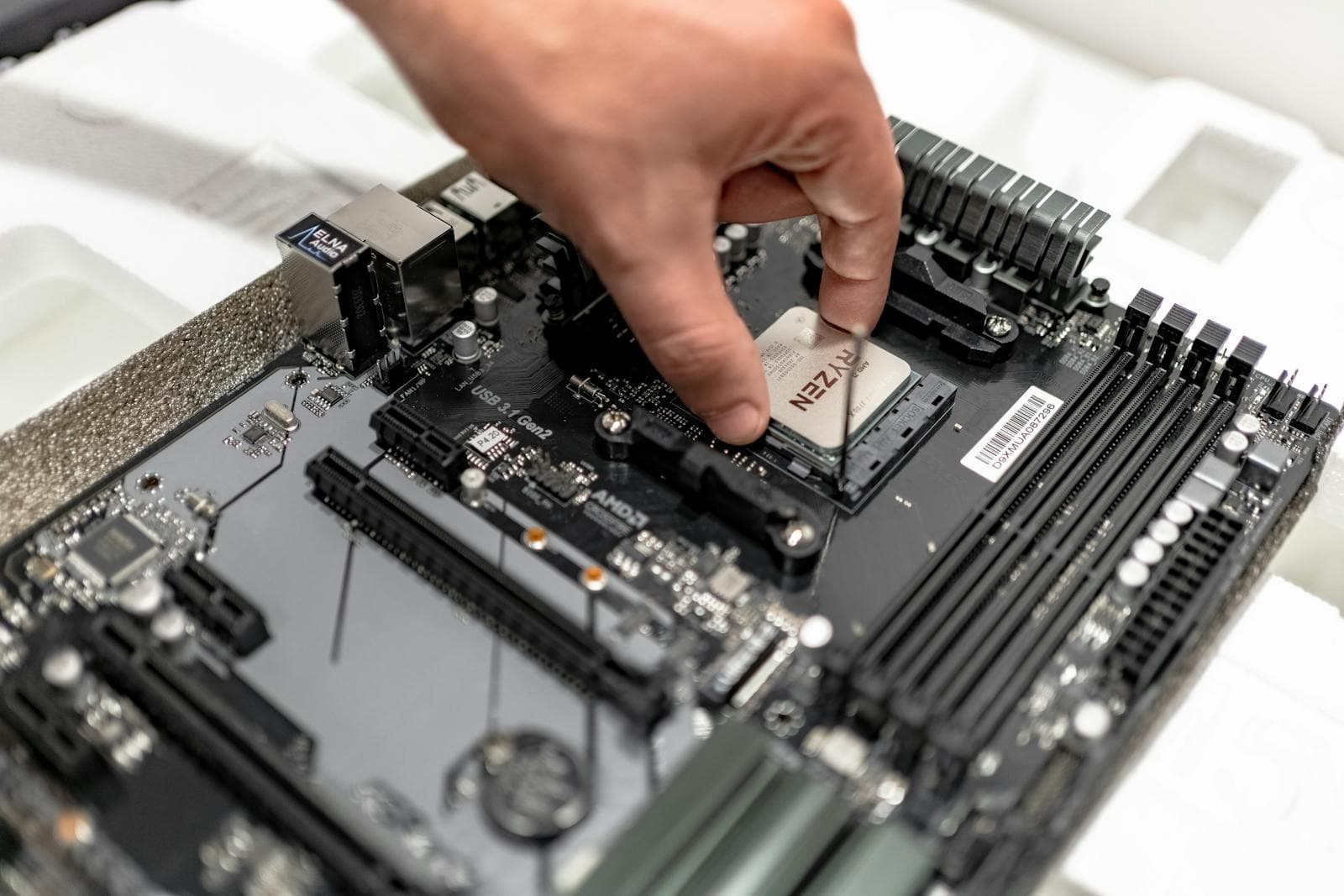
The compatibility problem with PC builds isn't that parts are hard to match — it's that incompatibilities aren't always obvious until you're holding the parts. A CPU that won't seat is obvious. A GPU that's 5mm too long for your case is not obvious from a product page. A PSU that lacks a 12VHPWR cable for a new RTX GPU is not obvious until you're mid-build.
The other issue is that some incompatibilities look fine on paper. DDR4 RAM physically will not seat in a DDR5 slot, but both look like standard RAM sticks. A GPU listed at "3-slot" may be 3.5 slots in practice. HDMI 2.0 and 2.1 ports look identical — only the version number on the spec sheet reveals which one you have.
The sections below give you the numbers and specifics to check before buying anything.
1. CPU and Motherboard Socket
The socket must match exactly. A socket mismatch means the CPU physically won't seat, and forcing it damages pins.
Current sockets to know:
| Platform | Socket | CPU Generations |
|---|---|---|
| AMD | AM5 | Ryzen 7000, 8000, 9000 series |
| AMD | AM4 | Ryzen 5000 and older |
| Intel | LGA1851 | Core Ultra 200 series (Arrow Lake) |
| Intel | LGA1700 | 12th, 13th, 14th Gen Core |
Beyond socket: chipset matters too. Even with the right socket, not every motherboard supports every CPU. AMD's B650 chipset supports Ryzen 7000 series — but if you're pairing a Ryzen 9000 CPU with an older B650 board, it may need a BIOS update before it can boot. If the board has never had a Ryzen 9000 installed, it can't update itself. You'd need a compatible CPU to flash the BIOS first, or buy from a retailer that offers BIOS flashing.
For overclocking: only Z-series boards (Intel) and X-series or higher (AMD) support CPU overclocking. B-series and H-series boards lock multipliers.
For a full breakdown, see CPU socket and motherboard compatibility explained. For specific board picks by chipset and budget, see the best gaming motherboard guide for 2026.
2. Motherboard and Case Form Factor
This is the most overlooked compatibility check, and one of the easiest to get wrong. Motherboards come in three main sizes: ATX (full), mATX (Micro-ATX), and ITX (Mini-ITX). Cases are designed to fit a specific set of those sizes. An ATX motherboard physically will not fit in a Micro-ATX or ITX case.
| Form factor | Board size | Typical case type |
|---|---|---|
| ATX | 305 × 244mm | Mid-tower, full-tower |
| mATX | 244 × 244mm | Mid-tower (most accept mATX), compact cases |
| ITX | 170 × 170mm | Small Form Factor (SFF) cases only |
The practical rule: if you want a compact build, choose your case first, then pick a motherboard in the form factor it supports. Choosing a great ATX board and then a compact case is a build-breaking mistake that doesn't get discovered until delivery.
Cases list their supported form factors in the spec sheet. Larger cases often support multiple sizes — a mid-tower ATX case will usually also fit mATX and ITX boards.
3. RAM — Type, Speed, and Slot Configuration
Get the type wrong and the RAM physically won't seat. DDR4 and DDR5 use different notch positions. There's no adapter. If your motherboard supports DDR5, you buy DDR5. Check the motherboard spec sheet — it will say "DDR5" or "DDR4" explicitly.
Speed: Motherboards list a maximum supported XMP/EXPO speed. RAM rated higher than that will still work — it just downclock to the board's maximum. Buying DDR5-7200 for a board that caps at DDR5-6000 wastes money but doesn't break anything.
Slot configuration: Most boards want RAM in specific slots — typically A2 and B2 (the second and fourth slots), not A1 and B1. Installing in the wrong slots forces the RAM to run in single-channel mode instead of dual-channel, losing a meaningful chunk of memory bandwidth. The manual and the board's printed labels show which slots to use.
Amount: 16GB is the realistic minimum for gaming in 2026. 32GB is the recommended target for any build that will last several years, particularly for 1440p and 4K gaming where VRAM and system RAM work in combination.
For a deeper look at RAM compatibility, see RAM compatibility — speed, slots, and what actually matters.
4. GPU Size and Case Clearance
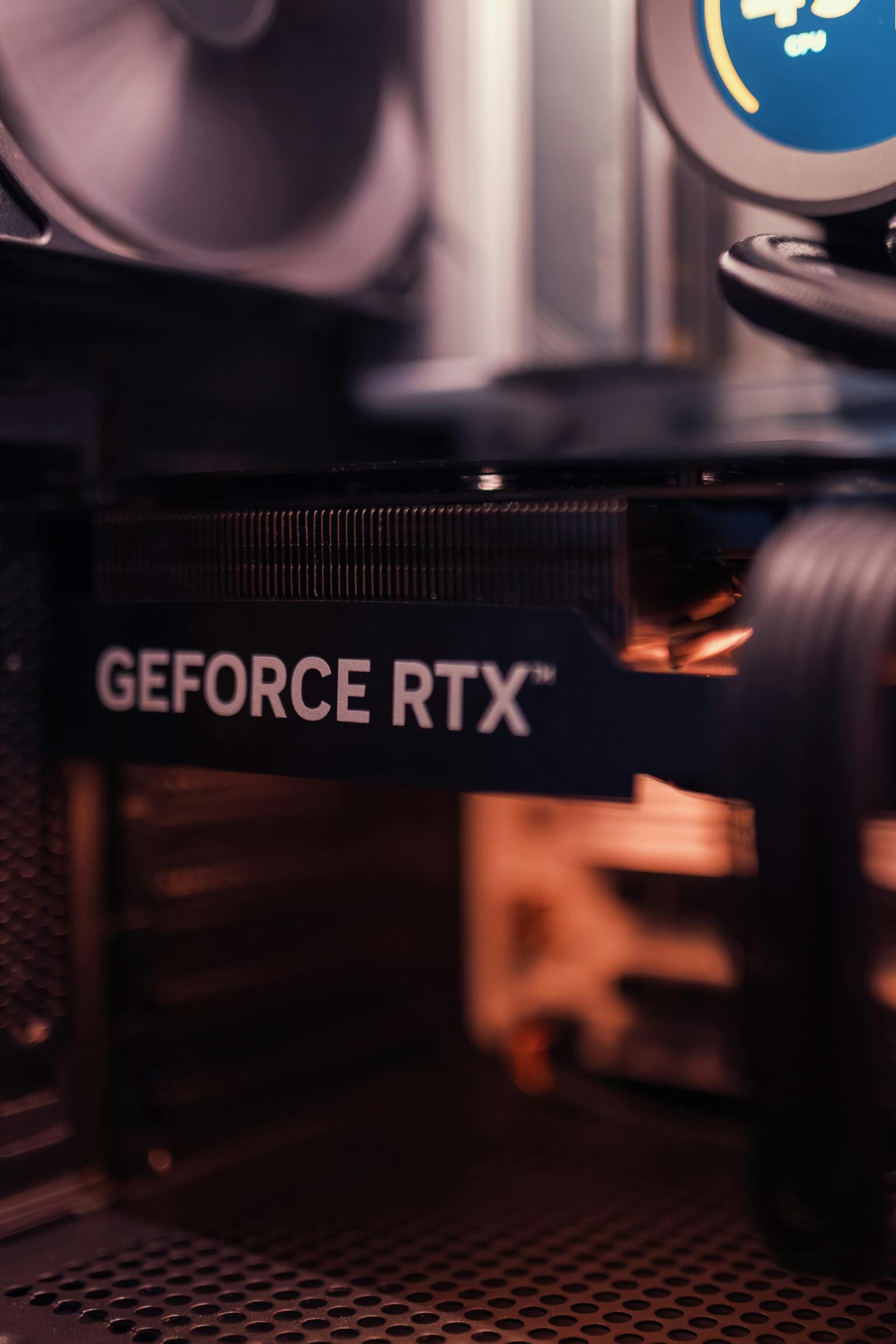
This is the most common physical compatibility failure in first-time builds. The GPU spec sheet shows a length in millimetres. Your case spec sheet shows a maximum GPU length. If the GPU is longer than that, it doesn't fit. The card either physically won't go in, or the front panel of the case blocks it.
Modern GPU lengths to expect:
| Tier | Examples | Typical Length |
|---|---|---|
| Compact/budget | RTX 4060, RX 7600 | 220–280mm |
| Mid-range | RTX 4070, RX 7700 XT | 285–320mm |
| High-end | RTX 4080, RX 7900 XTX | 320–360mm |
Slot width is a second physical check. High-end and mid-to-high-range GPUs occupy 2.5 to 3 expansion slots. Some cases have storage bays or drive cages positioned near the expansion slots — a 3-slot GPU can conflict with those depending on case design.
The practical check: look up your case's max GPU length in the spec sheet (not reviews — manufacturers update case designs without updating article photos), then confirm the GPU length from the manufacturer's product page. Leave at least 5–10mm of margin.
For the full guide on measuring and verifying GPU clearance, see GPU size and case clearance — will your GPU fit?.
5. GPU Power Connectors
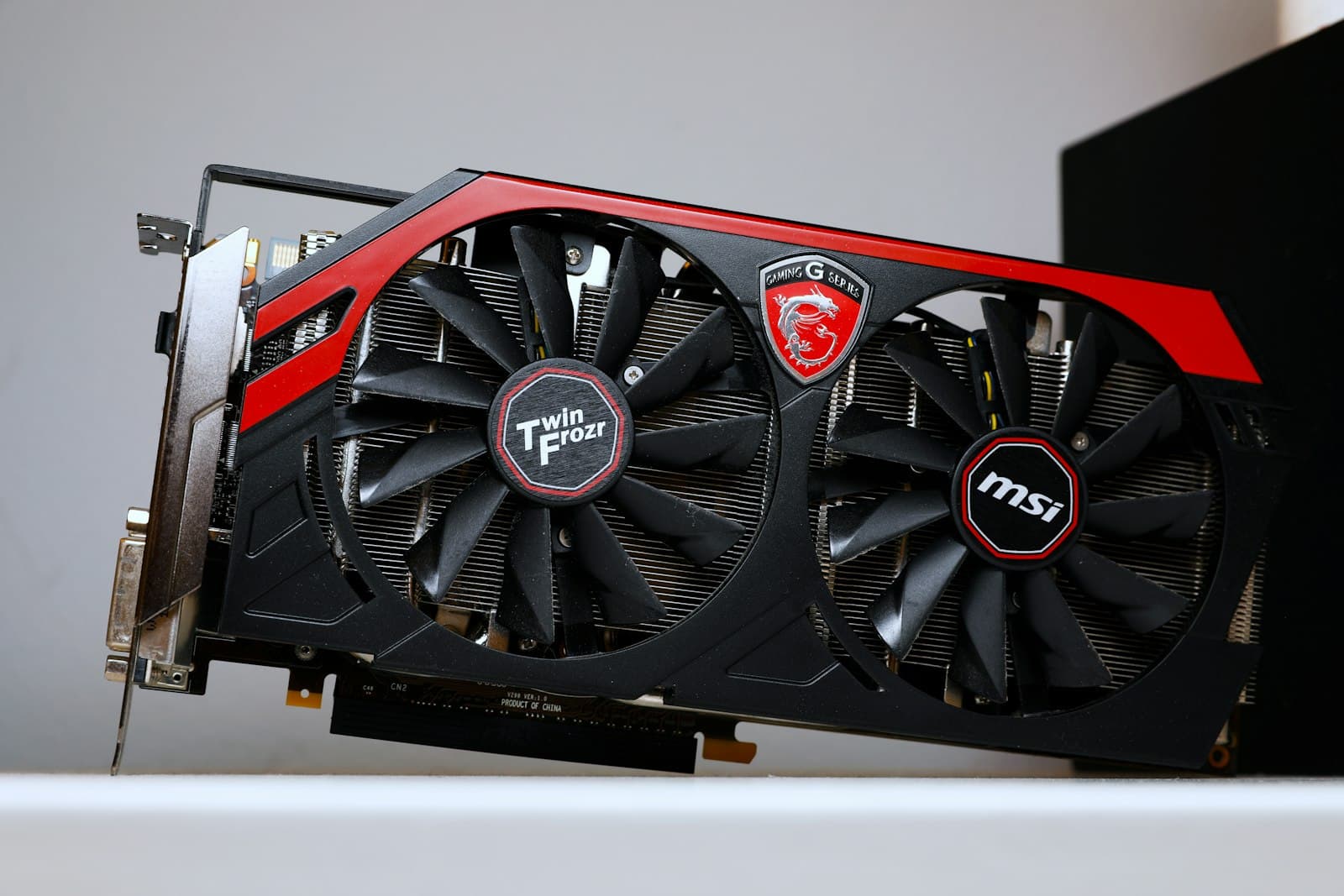
Most GPUs draw power directly from the PSU via dedicated power cables — not just from the PCIe slot. The GPU's spec sheet lists exactly what's required under "Connectors" or "Power Connectors Required." Confirm your PSU has the matching cables before ordering.
Three connector types in use:
| Type | Used by | Notes |
|---|---|---|
| 8-pin PCIe | Most AMD GPUs, older Nvidia GPUs | Standard; present on virtually all modern PSUs |
| 6-pin PCIe | Older budget GPUs | Less common in current builds |
| 16-pin 12VHPWR | Nvidia RTX 4000 and 5000 series; some AMD GPUs | Requires a native 12VHPWR cable or a proper adapter |
The 12VHPWR adapter warning: RTX 4000 and 5000 series GPUs often ship with an adapter that converts three 8-pin cables into one 16-pin 12VHPWR connector. This works — but only if each 8-pin cable comes from a separate connector on the PSU. Running all three from a single daisy-chained cable on the same PSU wire is a documented fire risk under high GPU load. If your PSU doesn't have a native 12VHPWR cable, use three separate PCIe cables from the PSU, not one cable with multiple connectors.
Modular PSUs: if your PSU is fully or semi-modular, confirm the required cables are included in the box. High-end GPUs that draw 300W+ may need cables that aren't bundled with every PSU at that wattage.
Very low-end GPUs (Arc A380, RX 6400) draw all power from the PCIe slot and need no external connector. This is the exception — any GPU above roughly £150/$150 will require at least one dedicated power cable.
6. CPU Cooler Height (and RAM Clearance)
Tower coolers have a height rating in millimetres. Cases have a maximum CPU cooler height rating. If the cooler is taller than the case allows, the side panel won't close.
Common tower cooler heights:
- High-performance towers (Noctua NH-D15, DeepCool AK620): 155–168mm
- Mid-range towers (Thermalright Peerless Assassin, be quiet! Pure Rock 2): 155–158mm
- Low-profile coolers (for compact cases): 47–130mm
Most mid-tower cases allow 155–165mm. Compact cases (mATX, ITX) often cap at 130–150mm — verify before buying a full-size tower cooler for one of those.
The second issue: RAM slot clearance. Large dual-tower coolers and some single-tower designs overhang the RAM slots, depending on the mounting orientation on the motherboard. On AM5 and LGA1851 boards, some high-performance coolers physically block the first RAM slot. The cooler's spec sheet or product page usually lists RAM height compatibility — RAM modules taller than ~36mm (modules with tall heatspreaders) may not fit under certain coolers.
If you're using an AIO liquid cooler, the height check doesn't apply — the pump block is small. The check you need instead is radiator size vs. case radiator support. A 360mm AIO radiator won't fit in a case that only supports up to 240mm, even if there's plenty of space inside. Case specs list this as "Radiator Support" with positions (top, front, rear) and the maximum size at each. A 360mm radiator typically mounts at the front or top; a 240mm fits nearly everywhere. Confirm before buying.
For details on both air and liquid cooler compatibility, see CPU cooler height and RAM clearance explained.
7. PSU Wattage and Physical Size
The rule: calculate your system's combined TDP (CPU + GPU is the bulk of it), then add 20–30% headroom.
Example:
- Ryzen 7 7700X: 105W TDP
- RTX 4070 Ti Super: 285W TDP
- Rest of system (RAM, storage, fans, motherboard): ~50–80W
- Total draw at load: ~440–470W
- Recommended PSU: 650W minimum, 750W is the safe choice
Why headroom matters: a PSU running consistently at 90%+ of its rated output degrades faster and generates more heat. More practically, power draw spikes momentarily above the average during GPU load transitions. A PSU with no headroom can't absorb those spikes cleanly.
CPU power connector (EPS): beyond wattage, confirm the PSU includes an 8-pin EPS connector (also labelled CPU or ATX12V). This cable powers the CPU through the motherboard — it's separate from the main 24-pin ATX connector. Virtually every modern PSU includes at least one 8-pin EPS cable. High-end motherboards (X670E, Z790 Extreme, and above) have dual 8-pin EPS headers and need two EPS cables for full overclocking headroom. If you're pairing a high-end board with a budget PSU, check whether it includes two EPS cables or only one.
GPU power connectors: check your GPU's required connector type (covered in Section 5) and confirm the PSU has matching cables. See Section 5 for the 12VHPWR adapter warning.
Physical size: standard ATX PSUs don't fit in SFF (Small Form Factor) cases. SFF cases typically require an SFX PSU, which is smaller. SFX and ATX PSUs are not interchangeable — the mounting points and dimensions are different. If you're building in a compact case, check what PSU form factor it requires before purchasing.
For a full TDP calculation guide, see TDP explained — how to match your CPU and GPU to your PSU.
8. Storage Interface and Physical Fit
NVMe M.2 drives are the standard for primary storage in 2026. They connect via an M.2 slot on the motherboard. Most ATX and mATX boards have two or three M.2 slots; budget B-series boards sometimes have only one. If you want fast primary storage plus a secondary drive, confirm the board has enough M.2 slots or SATA ports.
SATA drives (traditional SSDs and HDDs) connect via SATA ports. These are present on virtually all ATX boards (4–6 ports typical). The compatibility issue to watch: some boards disable certain SATA ports when M.2 slots are occupied, because both share PCIe lanes. Check the motherboard manual if you're running multiple drives.
SATA power connectors: SATA SSDs and HDDs draw power from the PSU via SATA power connectors — a flat, L-shaped cable distinct from PCIe power cables. Confirm your PSU has enough SATA power connectors for the number of drives you're running. Most PSUs include at least two or three. If you're running four or more SATA drives, count them explicitly in the PSU spec sheet.
Drive bays in the case: SATA drives need physical mounting points inside the case. 2.5" SSDs mount in dedicated 2.5" bays or on brackets. 3.5" HDDs need the larger 3.5" bays — which many modern slim and compact cases have removed entirely. If you're migrating a 3.5" hard drive from an old build or planning to add one, confirm the case has a 3.5" bay before ordering. ITX cases and many slim mid-towers don't include them.
For most builds using a single NVMe drive, storage compatibility is the simplest check: confirm there's an M.2 slot, done. SATA power and drive bays only matter if you're running multiple drives or keeping an old HDD.
One catch worth knowing before you buy: an M.2 slot isn't automatically an NVMe slot, and some M.2 drives run at SATA speeds despite fitting the same slot. The NVMe vs SATA SSD guide covers how to check which mode your board's M.2 slots support and how to tell the two drive types apart on a product listing.
9. PCIe Generation
A PCIe generation mismatch won't stop a build from booting, but it can reduce GPU performance. Your CPU, motherboard, and GPU all communicate over PCIe — and the generation should ideally align.
| PCIe Generation | Bandwidth (x16 slot) | Supported by |
|---|---|---|
| PCIe 4.0 | 64 GB/s | Ryzen 5000+, Intel 12th Gen+, most current GPUs |
| PCIe 5.0 | 128 GB/s | Ryzen 7000/9000, Intel Core Ultra 200, high-end GPUs |
What happens with a mismatch: a PCIe 5.0 GPU in a PCIe 4.0 slot runs at PCIe 4.0 speeds. For most current GPUs using a full x16 slot, the real-world performance difference is less than 3% — not a meaningful loss. The gap is larger for GPUs that already run on narrower x8 or x4 lanes, and may grow as future games become more bandwidth-intensive.
The check: confirm your CPU and motherboard both support the same PCIe generation as the GPU's primary x16 slot requirement. For most builds pairing a current-gen AMD or Intel CPU with a matching chipset board, this is already aligned and requires no special action.
10. GPU Outputs and Monitor Inputs
Your GPU's output ports need to match what your monitor accepts — and the version number matters as much as the connector type. DisplayPort and HDMI look the same across generations, but only certain versions carry enough bandwidth for high-resolution, high-refresh-rate gaming.
| Standard | Bandwidth | Practical limit |
|---|---|---|
| HDMI 2.0 | 18 Gbps | 4K/60Hz or 1440p/144Hz |
| HDMI 2.1 | 48 Gbps | 4K/144Hz, 4K/240Hz, 8K/60Hz |
| DisplayPort 1.4 | 32 Gbps | 4K/120Hz (with DSC), 1440p/240Hz |
| DisplayPort 2.1 | 80 Gbps | 4K/240Hz+, 8K/60Hz |
The common failure: buying a GPU without HDMI 2.1 for a 4K/144Hz monitor. Most modern mid-range GPUs include HDMI 2.1, but ultra-budget cards and older second-hand stock may still ship with HDMI 2.0, which caps 4K output at 60Hz. If your monitor is 4K/144Hz and has only HDMI inputs, verify the GPU explicitly lists HDMI 2.1. DisplayPort 1.4 is the safer alternative if the monitor accepts it.
DisplayPort vs. HDMI: for gaming monitors, DisplayPort 1.4 is the most widely supported high-refresh standard and works for 1440p/240Hz and 4K/120Hz without issues. HDMI 2.1 matters primarily when the monitor or TV has only HDMI inputs.
The practical check: look up the GPU's output specifications (DisplayPort version, HDMI version) from the manufacturer's product page. Compare against your monitor's accepted input versions. They need at least one shared standard that supports your target resolution and refresh rate.
11. Audio and Front Panel Headers
For the vast majority of builds, audio compatibility is automatic: plug headphones or speakers into the 3.5mm jack on the motherboard's rear I/O, and it works. The check matters for specific setups.
Rear I/O audio: all modern ATX and mATX motherboards include colour-coded 3.5mm jacks (green for output, pink for microphone, blue for line in). This covers stereo headphones, PC speakers, and most external DACs. Some boards also include an optical S/PDIF output — required if you're connecting to a surround sound AV receiver or a DAC that only accepts digital audio input.
If you're using a surround sound receiver: check the motherboard's rear I/O spec for optical output before purchasing. Not all mid-range boards include it — it's more common on higher-end audio-focused boards (B650, Z790 variants with "audio" or "pro" in the name) and on boards featuring integrated ESS or Realtek ALC4082+ codecs.
Front panel audio header: cases route audio to a 3.5mm jack on the front panel via a cable labelled "HD Audio" or "F_Audio." This connects to the HD Audio header on the motherboard — present on virtually every modern board. The only edge case: old cases (pre-2010) using an AC'97 audio connector, which is a slightly different standard. If you're reusing an old case, check which audio standard the front panel cable uses.
Front panel USB-C header: many mid-range and higher cases include a USB-C port on the front panel. This port requires an internal Type-E (USB 3.2 Gen 2×2) header on the motherboard to function. Budget motherboards frequently omit this header — the front USB-C port appears on the case but does nothing. If the front USB-C port matters to you, confirm the motherboard spec sheet lists an internal Type-E or USB-C header before buying.
USB DACs and audio interfaces bypass all of the above — they connect over USB and handle audio independently from the motherboard's onboard audio. If audio quality is a priority, a dedicated USB DAC sidesteps any onboard audio limitations entirely.
Common Mistakes That Slip Through
These are the compatibility errors that actually trip up first-time builders — not the obvious ones:
Choosing a motherboard that doesn't fit the case. An ATX board in an mATX or ITX case is a non-starter — it won't mount. Always confirm the case's supported form factors before finalising the motherboard.
Buying RAM for the wrong generation. DDR4 in a DDR5 build (or vice versa) is the most common single-component error. Always check the motherboard spec page before ordering RAM.
Not checking GPU length. Most people verify the GPU fits a case by looking at photos. Photos don't tell you if a 340mm GPU clears a case rated for 320mm. Use the numbers.
Ordering a new-gen CPU that needs a BIOS update. A Ryzen 9000 CPU paired with an older B650 board may need a BIOS update to boot. If the board has never had a compatible CPU installed, it can't update itself. Either buy a board with BIOS Flashback (can update without a CPU installed), or buy from a retailer that will flash it for you.
Ignoring cooler height for compact builds. Mid-tower cases usually have 155–165mm clearance, and most popular coolers fit. But SFF or compact mATX cases may cap at 130–150mm — a standard tower cooler will fail to close the side panel.
Buying an ATX PSU for an SFF case. SFF cases use SFX PSUs, which are physically smaller. An ATX PSU will not mount in an SFF case. If you're building compact, check the case's required PSU form factor.
Assuming a 650W PSU is enough without checking. 650W covers most mid-range builds but isn't adequate for a high-end GPU (RTX 4080/4090 or RX 7900 XTX). Calculate TDP first.
Using a daisy-chained 12VHPWR adapter. If your GPU uses a 12VHPWR adapter with three 8-pin inputs, each 8-pin must come from a separate cable at the PSU end — not from one cable with multiple connectors along its length. Using a daisy chain creates a fire risk at high GPU power draw.
Buying a GPU with HDMI 2.0 for a 4K/144Hz monitor. HDMI 2.0 caps at 4K/60Hz. If your monitor has only HDMI inputs and you want 4K/144Hz, the GPU must have HDMI 2.1. Always check the GPU's output spec — not just that it has "HDMI."
Not checking drive bays before adding an HDD. Modern compact cases and many slim mid-towers have dropped 3.5" bays entirely. If you're migrating an old hard drive or adding one, confirm the case includes a 3.5" bay — it's no longer guaranteed even on full-size mid-towers.
Buying a case with front USB-C and a budget motherboard without the header. Many cases include a front USB-C port, but budget motherboards often omit the internal Type-E header that powers it. The port will appear on the case and do nothing. If a working front USB-C port matters, check the motherboard spec sheet for an internal USB-C or Type-E header before ordering.
These are the pre-purchase errors. For the mistakes that happen during assembly itself — like the EPS power cable or RAM slot placement — see the common PC building mistakes guide.
Do You Need to Check All of This Manually?
If you're building from a fresh parts list, the PC Builder at MaxMyBuild runs every check in this guide automatically — socket compatibility, RAM type and speed support, GPU and cooler physical fit, PSU wattage and connector requirements, storage slot availability — before showing you a build. Enter your budget and it returns a parts list where everything is already verified.
If you're using a mix of existing parts (a case you already own, RAM from a previous build, a GPU you're reusing), the manual checks above are what you need to work through for the parts you're adding.
For a walkthrough of how the PC Builder works, see How to Use MaxMyBuild.
Go Deeper on Each Check
Each compatibility area above has its own detailed guide:
- GPU size and case clearance — will your GPU fit?
- CPU cooler height and RAM clearance explained
- TDP explained — how to match your CPU and GPU to your PSU
- RAM compatibility — speed, slots, and what actually matters
- CPU socket and motherboard compatibility explained
Frequently Asked Questions
How do I know if my PC parts are compatible?
Check twelve things: CPU socket matches the motherboard, motherboard form factor fits the case, RAM is the correct type (DDR4 or DDR5) and speed, GPU length fits the case, GPU has the correct power connectors from the PSU, CPU cooler height fits the case, PSU wattage covers system TDP with 20–30% headroom and has the right EPS and GPU cables, storage drives match available slots and case drive bays, PCIe generations align, GPU outputs match your monitor inputs, and your audio setup matches the motherboard I/O. If you want this done automatically, the PC Builder at MaxMyBuild validates every combination before showing you a build.
Will DDR4 RAM work in a DDR5 motherboard?
No. DDR4 and DDR5 are physically incompatible — the notch position is different, so DDR4 sticks won't seat in DDR5 slots. You must match the RAM generation to what your motherboard supports. Check the motherboard spec sheet before buying RAM.
Does it matter what GPU I pick for my case?
Yes. Modern triple-fan GPUs can be 320–360mm long and occupy 2.5–3 slots wide. Your case has a maximum GPU length listed in its spec sheet. If the GPU is longer than that, it won't fit. This is one of the most common physical compatibility failures in first-time builds.
Does my GPU need extra power cables from the PSU?
Yes, in almost all cases. Modern GPUs require dedicated PCIe power cables — either 8-pin connectors or the newer 16-pin 12VHPWR connector used by Nvidia RTX 4000 and 5000 series. Check your GPU's spec sheet under "Power Connectors Required" and confirm your PSU has matching cables. Very low-end GPUs (Arc A380, RX 6400) are the exception — they draw all power from the PCIe slot and need no external cable.
What happens if my PSU doesn't have enough wattage?
The system will either fail to boot, crash under load, or run unstably — especially during gaming when the GPU draws maximum power. A PSU running at or near its rated limit also degrades faster. Always add 20–30% headroom above your system's combined TDP.
What display cable do I need for 4K 144Hz gaming?
You need a cable and port that supports at least 48 Gbps of bandwidth. HDMI 2.1 covers 4K/144Hz; DisplayPort 1.4 also works at 4K/144Hz using Display Stream Compression (DSC). Check that your GPU actually has that output version — several mid-range GPUs include only HDMI 2.0, which caps at 4K/60Hz. DisplayPort 1.4 or higher is the safer choice for high-refresh 4K builds.
Can a CPU physically not fit in a motherboard?
Yes. If the socket types don't match — for example, an AM5 CPU in an AM4 board — the CPU won't seat, and forcing it bends or breaks the pins. Always confirm the CPU's socket matches the motherboard's socket before purchasing.
Do I need to check storage compatibility?
Yes, but it's mostly straightforward. NVMe M.2 drives need an M.2 slot on the motherboard. SATA SSDs and HDDs need SATA ports and SATA power connectors from the PSU. If you're using a 3.5-inch HDD, also confirm the case has a 3.5-inch drive bay — many modern compact cases have removed them. Most builds using a single NVMe drive have no storage compatibility issues at all.