What Is a PC Bottleneck? CPU vs. GPU Bottlenecks Explained
This guide contains affiliate links. If you buy through them, we may earn a commission at no extra cost to you.
A PC bottleneck happens when one component can't keep up with another, capping your frame rate below what your best part is capable of. Most gaming bottlenecks are a weak CPU holding back a strong GPU. The GPU is meant to be the hardest-working part when you game, so a build where the GPU is the limiting factor is normal and healthy. What you want to avoid is spending more on the CPU than the GPU: a CPU far stronger than its GPU means money that should have gone toward more GPU power got spent on CPU headroom you'll never use in games.
The PC Builder at MaxMyBuild pairs every CPU and GPU by their actual benchmark scores so the two components stay in balance for your budget. The rest of this guide covers how to spot a bottleneck yourself and what to do about it.

What Causes a Bottleneck: CPU vs. GPU
A bottleneck is one component finishing its work slower than the other component needs it to. In gaming, the CPU prepares each frame (game logic, physics, draw calls) and hands it to the GPU to render. If the CPU can't prepare frames fast enough, the GPU sits idle waiting, and your frame rate is capped by the CPU instead of the GPU.
CPU bottleneck: the GPU could render more frames per second than the CPU can feed it. This shows up most at 1080p and in CPU-heavy games (strategy titles, simulation games, competitive shooters with high frame rate targets), because the GPU's workload per frame is lower, so it finishes faster and waits more often.
GPU bottleneck: the CPU is producing frames faster than the GPU can render them. This is the normal state for most gaming PCs, especially at 1440p and 4K where the GPU's per-frame workload goes up sharply while the CPU's doesn't. A GPU-bound system isn't broken. It just means the GPU, not the CPU, is setting the pace.
The how to choose a CPU for gaming guide and how to choose a GPU guide both cover how to pick a part that matches the rest of your build instead of running ahead of or behind it.
How to Tell If Your CPU Is Bottlenecking Your GPU

The clearest sign is GPU usage that sits well below 99 to 100% while your frame rate stays flat, even when you lower graphics settings. If lowering settings barely changes your frame rate, the GPU was never the limit to begin with, the CPU was.
Check it with your GPU vendor's overlay (MSI Afterburner, NVIDIA's in-game overlay, or AMD Adrenalin) while playing:
| GPU usage | What it means |
|---|---|
| 95 to 100% | GPU-bound. Normal and expected for most builds, especially at 1440p and 4K. |
| 80 to 95% | Mild CPU bottleneck. Usually not worth addressing. |
| Below 80%, especially with high CPU usage on one or two cores | Meaningful CPU bottleneck. The GPU is waiting on the CPU. |
Two other symptoms point to a CPU bottleneck specifically: frame rate barely moving when you drop from 1440p to 1080p (it should climb if the GPU is the limit), and stutter or frame time spikes in CPU-heavy scenes like crowded cities or large multiplayer battles, even though your average frame rate looks fine.
Real Bottleneck Examples: Four CPU and GPU Pairings
Actual benchmark scores make this concrete. MaxMyBuild scores every CPU's gaming performance on a 100-point scale (Ryzen 7 9850X3D sets the current ceiling at 100), and scores every GPU the same way at 1080p, 1440p, and 4K. The examples below use the 1080p GPU score, since 1080p is where CPU bottlenecks show up most (RTX 5090 sets the 1080p ceiling at 100). Prices below are approximate US retail snapshots, and they move constantly. The RTX 5090 in particular has traded well above its original list price during periods of high demand.
| CPU (Gaming Score) | GPU (1080p Score) | Result |
|---|---|---|
| Core i3-14100F (50/100), ~$105 | RTX 5090 (100/100), ~$4,100 | Severe CPU bottleneck. The GPU is priced for 4K flagship performance the CPU can't feed it, especially at 1080p and 1440p. |
| Ryzen 5 5600 (52/100), ~$165 | RTX 5070 (75/100), ~$629 | Moderate CPU bottleneck at 1080p, mostly disappears at 1440p and 4K as the GPU's workload grows. |
| Ryzen 7 9800X3D (97/100), ~$445 | RTX 5060 (51/100), ~$339 | GPU-bound, but the money is in the wrong place. Paying more for the CPU than the GPU is backwards: that CPU budget would have bought far more real gaming performance in a stronger GPU. |
| Ryzen 5 7600 (63/100), ~$210 | RTX 5070 (75/100), ~$629 | Well matched. Neither part meaningfully holds the other back. |
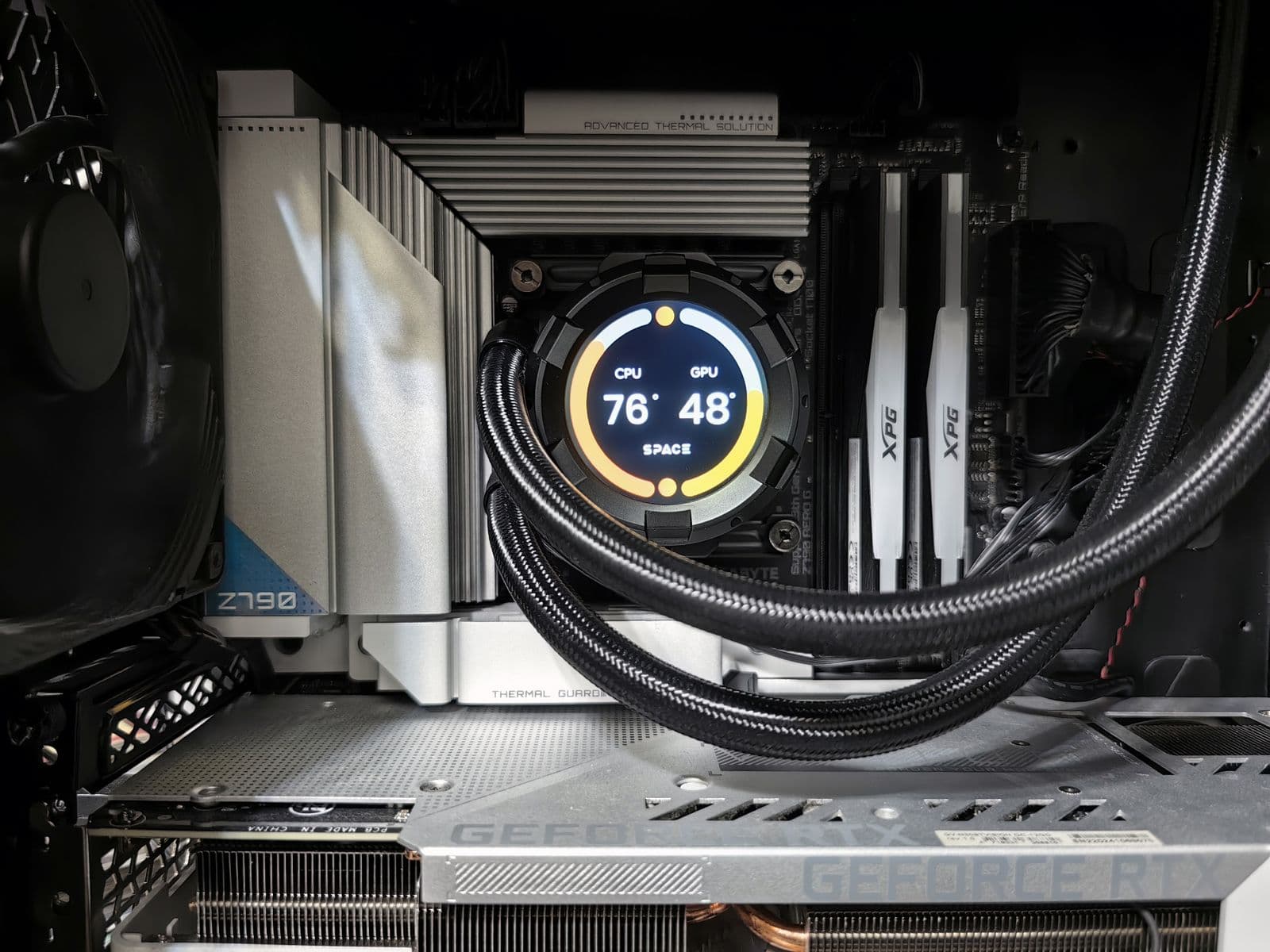
The first and third rows are the two pairings to avoid, and they're opposite mistakes. In the first, an entry-level CPU can't unlock a flagship GPU, so most of that huge GPU budget goes to waste at 1080p and 1440p. The third is the reverse: a top-tier CPU sitting next to a budget GPU. The GPU running at full load is fine on its own, but paying more for the CPU than the GPU is the real error here. As a rule of thumb, a gaming build should almost never spend more on the CPU than the GPU. Dollars parked in CPU headroom you can't use in games would buy far more frames in a stronger GPU.
Is Some Bottlenecking Normal?
Yes, and in most builds it should be the GPU, not the CPU, doing the limiting. Game developers and GPU makers design around this: the GPU is the component meant to be maxed out, since it's the one actually rendering pixels. A system where the GPU sits at 95 to 100% usage is working as intended, even though technically the GPU is "bottlenecking" the CPU's output.
The problem case is the reverse: a CPU so weak it caps a capable GPU well below what that GPU could otherwise deliver. That's the scenario worth planning around when you pick parts, not GPU-bound gaming in general.
How to Fix a CPU Bottleneck
Upgrade the CPU. This is the direct fix if you're staying at your current resolution and want the GPU's full performance. Check whether your motherboard supports a faster chip on the same socket before buying; some upgrades require a new motherboard and RAM alongside the CPU. The best CPU cooler guide covers what you'll need to keep a faster chip cool under sustained load.
Raise the resolution or add GPU-heavy settings. Moving from 1080p to 1440p, or turning on ray tracing, shifts more of the workload onto the GPU and less onto the CPU. This doesn't add performance, but it does close the gap between what the CPU can feed and what the GPU can render, since the GPU now has more to do per frame.
Do nothing if the frame rate is already enough. If you're hitting 100+ fps in your games and don't need more, a mild CPU bottleneck costs you frames you weren't using anyway. Not every gap needs to be closed.
Before assuming the CPU is the cause, rule out RAM. Single-channel memory, XMP or EXPO left disabled, or too little capacity for your games and background apps can all produce the same symptoms as a CPU bottleneck: flat frame rates, low GPU usage, and stutter in busy scenes.
Are Bottleneck Calculators Accurate?
Not reliably. Most online bottleneck calculators output a single percentage from a simplified formula rather than real game benchmarks, and two different calculators frequently disagree on the exact same CPU and GPU pairing by a wide margin. Treat the number as a rough directional signal, not a verdict.
A more reliable check is comparing actual benchmark scores for your specific parts side by side. The best gaming processors and best gaming graphics cards pages rank every current chip and card by benchmark score and price, which gives you a real performance gap to work from instead of a calculator's guess.
Does MaxMyBuild Prevent Bottlenecks Automatically?
Yes. The PC Builder at MaxMyBuild matches every CPU and GPU pairing by benchmark score, not just price, so the build it generates doesn't waste budget on a GPU your CPU can't feed or a CPU with no GPU to back it up.
For help choosing each part individually, see the how to choose a CPU for gaming guide and the how to choose a GPU guide.
Frequently Asked Questions
Is bottlenecking bad for my PC?
It's not dangerous, just wasteful. A bottleneck doesn't damage any component, it just means you paid for GPU performance the CPU can't fully unlock. The practical cost is lower frame rates than the GPU is capable of, not a broken or shortened part.
What percentage bottleneck is acceptable?
Under about 10% is normal and not worth addressing. 10 to 20% is noticeable and worth planning around on your next upgrade. Above 20 to 30% is a real mismatch, usually a low-end CPU paired with a high-end GPU at 1080p, and it's worth fixing with a CPU upgrade or a resolution change.
How do I fix a CPU bottleneck?
Upgrade the CPU (and possibly the motherboard and RAM with it), raise the resolution or add settings like ray tracing that shift the workload onto the GPU, or accept it if the frame rate you're already getting is enough for how you play.
Are online bottleneck calculators accurate?
Treat them as rough guides, not verdicts. Most run on simplified formulas rather than real game benchmarks, and they routinely disagree with each other on the same CPU and GPU pairing. Comparing actual gaming benchmark scores for your specific parts is more reliable than any single calculator's percentage.
Can RAM cause a bottleneck?
Yes. Running in single-channel mode instead of dual-channel, leaving XMP or EXPO disabled, or simply not having enough capacity for the games and background apps you run can all cap performance before the CPU or GPU becomes the limit.
Does a bottleneck damage your hardware?
No. A bottlenecked component runs at lower load, not higher load, so there's no added heat or wear from the mismatch itself. The only real cost of a bottleneck is unrealized performance, not hardware risk.